

Guide
Use this page to sign in, move between workspaces and get around Foundry quickly.
Foundry’s workspaces are your Helix Cloud workspaces: the same names, members and
roles.
Create a workspace, invite a teammate and see the plans.
Sign in
Continue with Google, GitHub or Microsoft. Foundry signs you in with your Helix account, so use the same provider you use for Helix Cloud. Password and single sign-on sign-ins aren’t offered on Foundry yet. If your company signs in with single sign-on, Foundry says so; use the Helix dashboard instead. If your email isn’t verified with the provider, verify it there or continue with another provider.Choose or create a workspace
With one workspace, Foundry opens it. With several, or none, it opens the workspace picker. Select a workspace to open it, or Create workspace to start one. A new workspace starts on Foundry Free.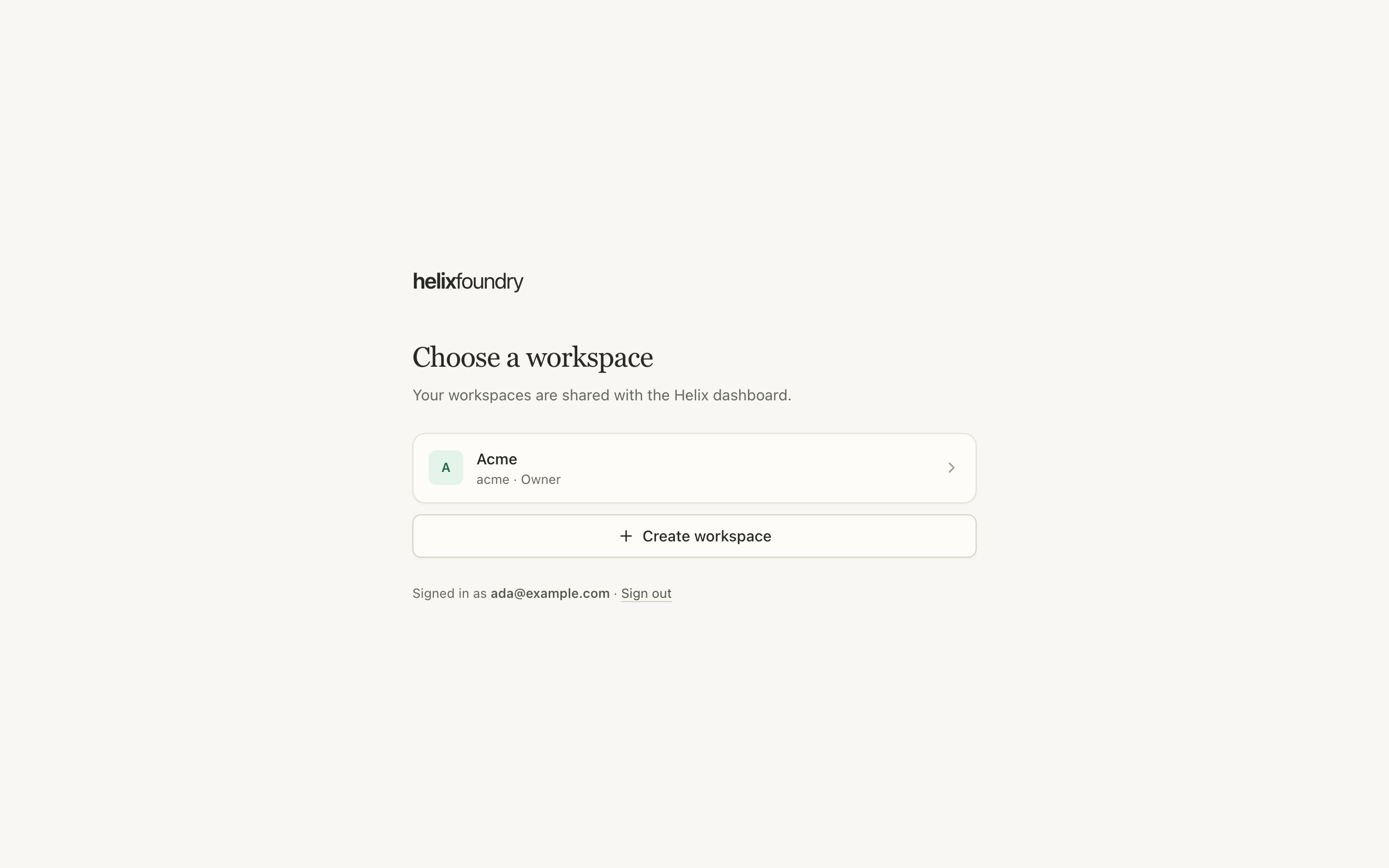
Home
Home says where the workspace stands: its connections and synced tables, its ontologies, its members and its plan. Each card links to the page that changes it.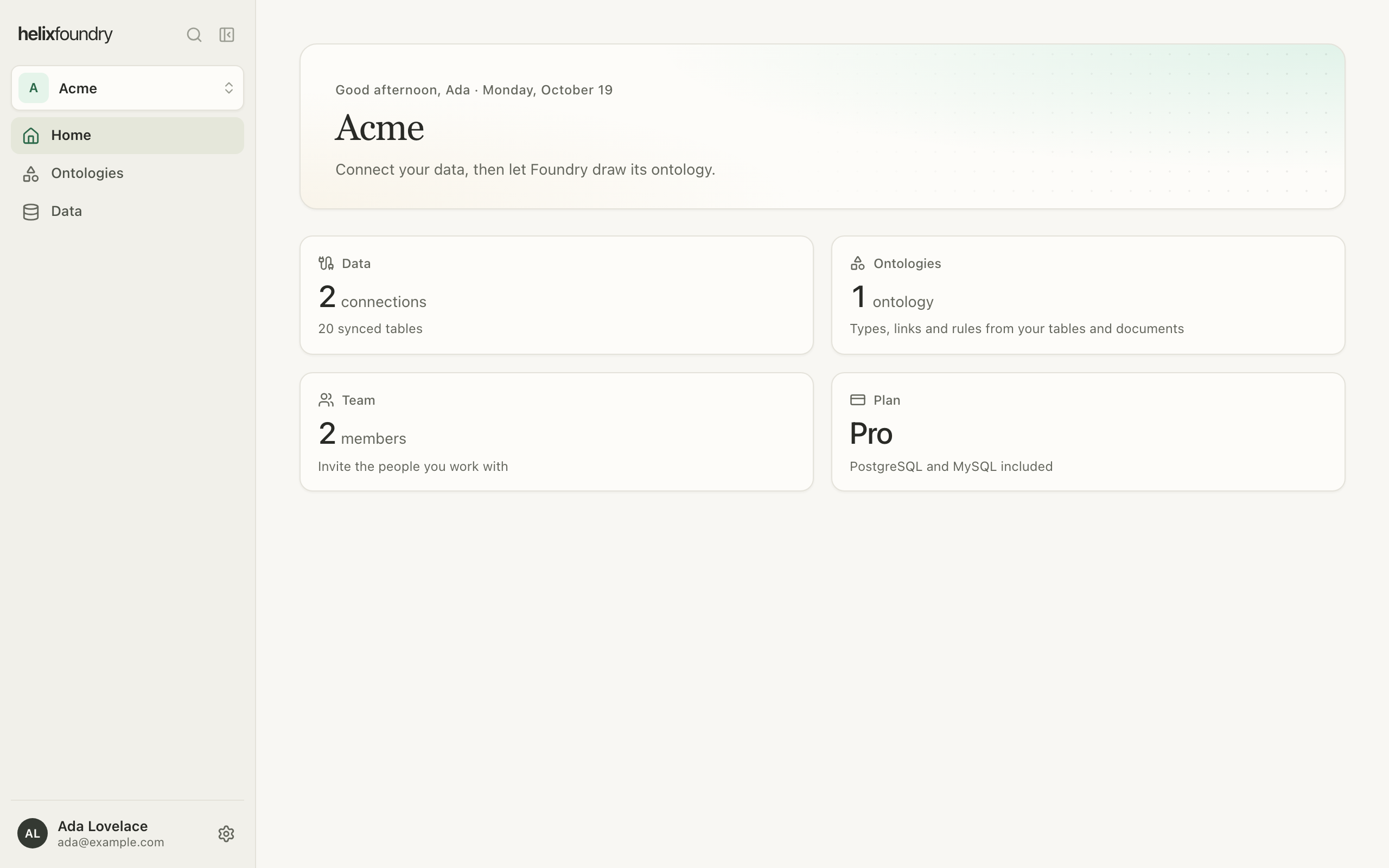
Search with the command palette
Press ⌘ K (Ctrl K on Windows and Linux) to search pages, synced tables and ontologies. Owners and admins also get Add data and Create an ontology there.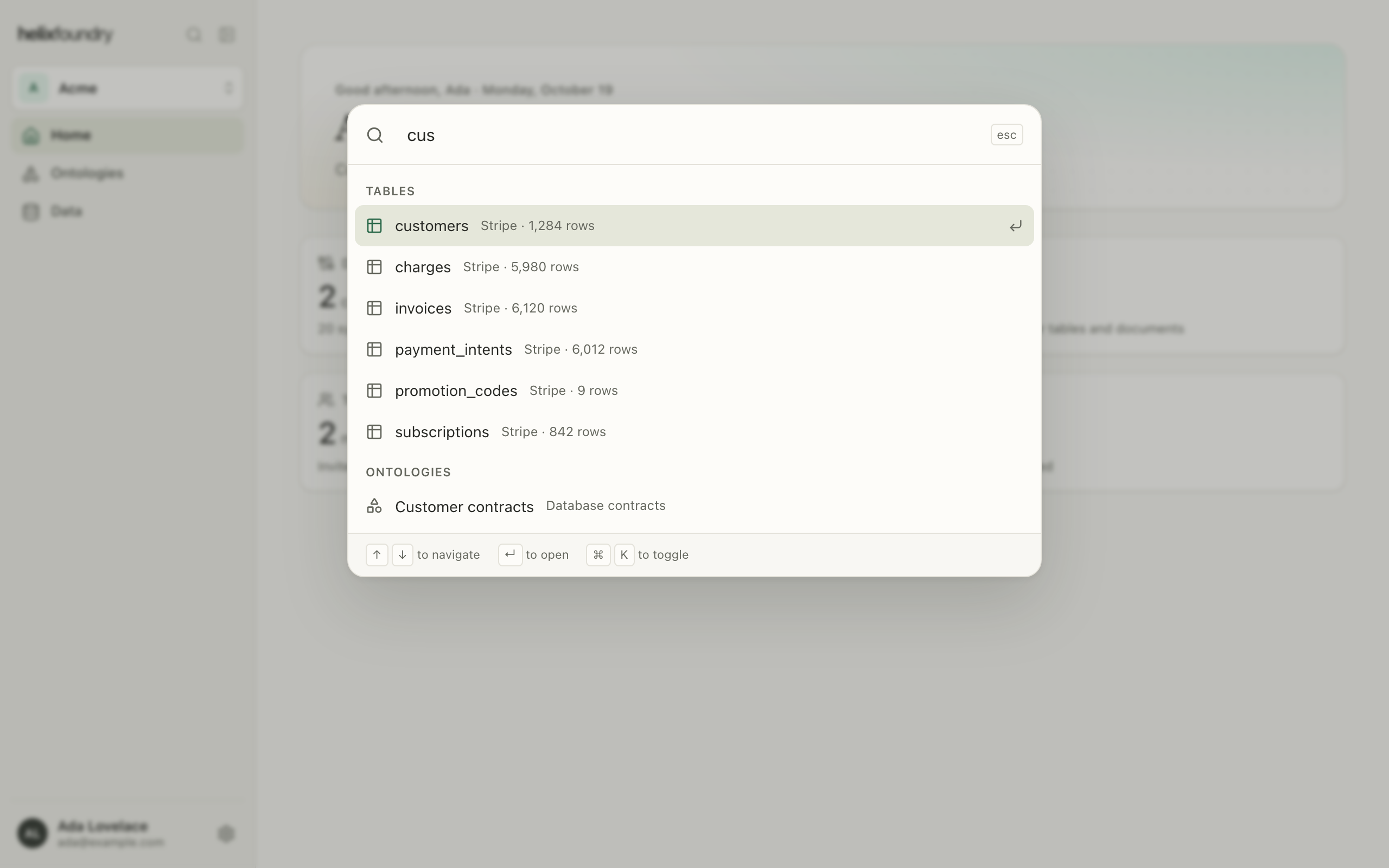
Account menu and theme
Select your name at the foot of the sidebar for Settings, Members, Plan & billing, the theme and Sign out. Choose System, Light or Dark; Foundry keeps the choice in this browser.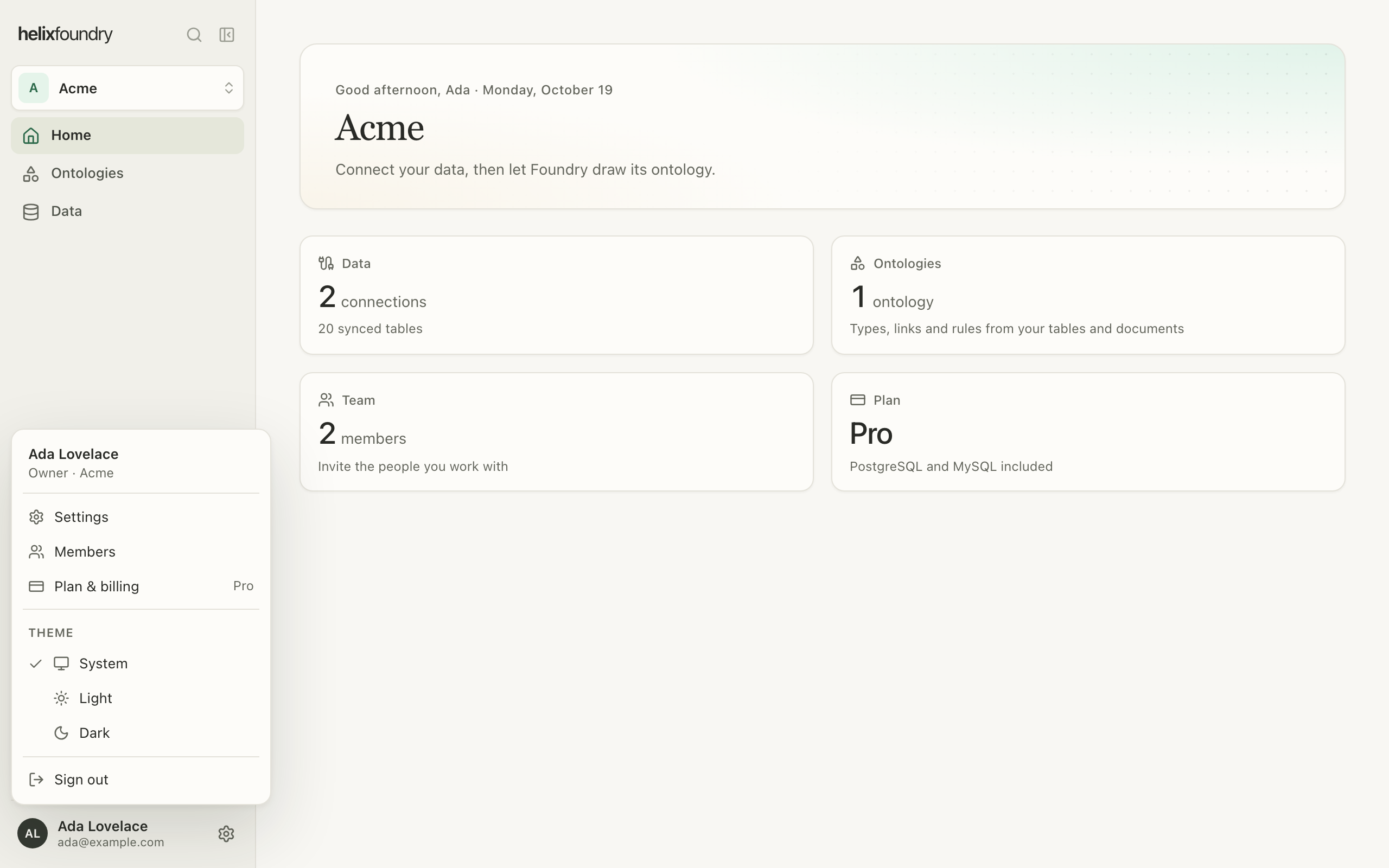
Workspace settings
Settings → General shows the workspace’s name, address, region and your role. Rename or delete a workspace in the Helix dashboard; Foundry shares it with Helix Cloud.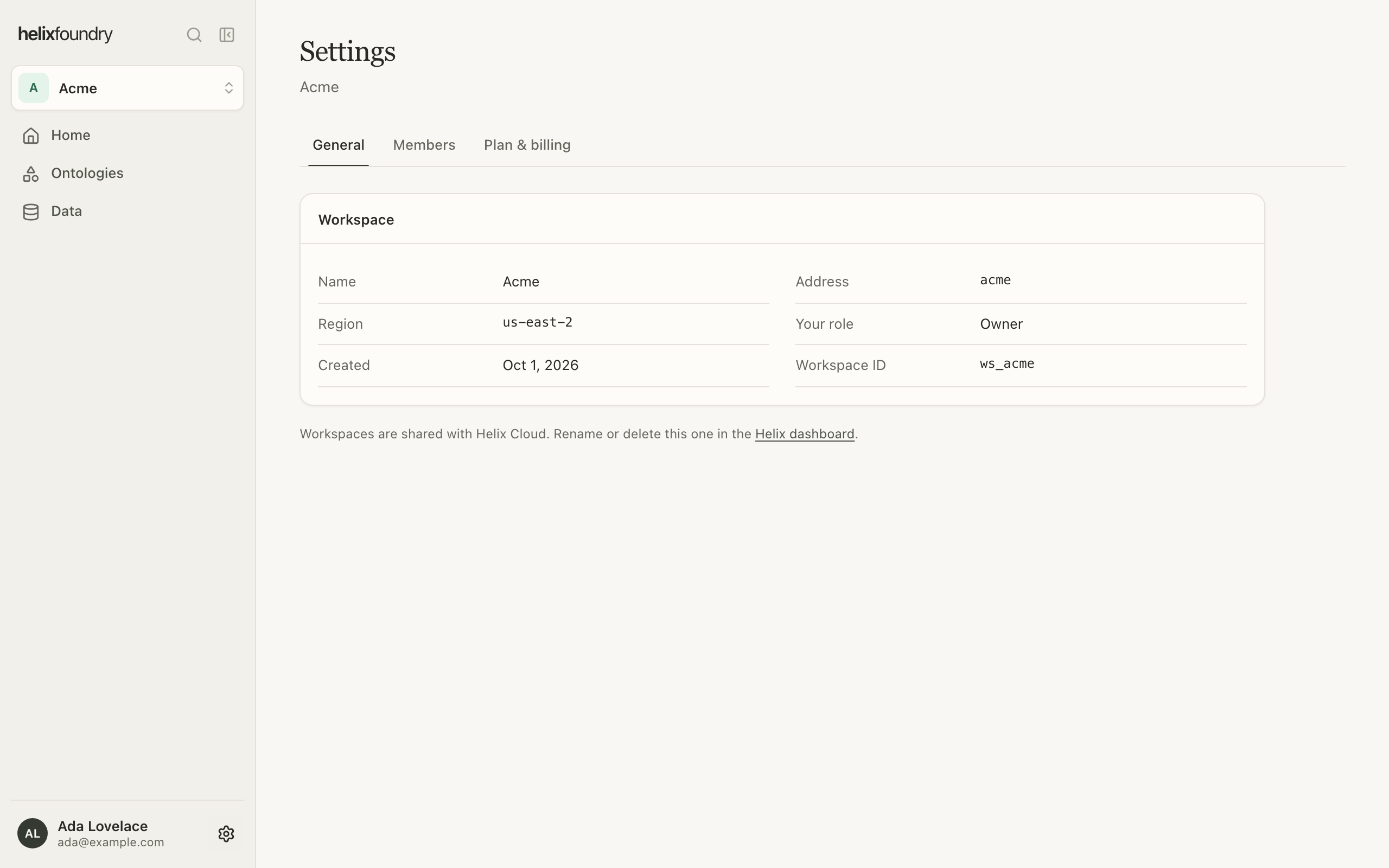
Next steps
Members and roles
Invite people and see what each role can do.
Plans and billing
Compare Free, Pro and Max.