

Guide
A connection is a source Foundry reads, such as a Stripe account or a PostgreSQL
database. Each sync copies its tables into a snapshot that generations and loads read.
Owners and admins add, sync, edit and delete connections; members see them.
Connect Stripe, test the key, sync it and open a table.
The Data page
Data lists every connection with its status, its tables and their row counts, and when it last synced. Search finds a source or a table by name.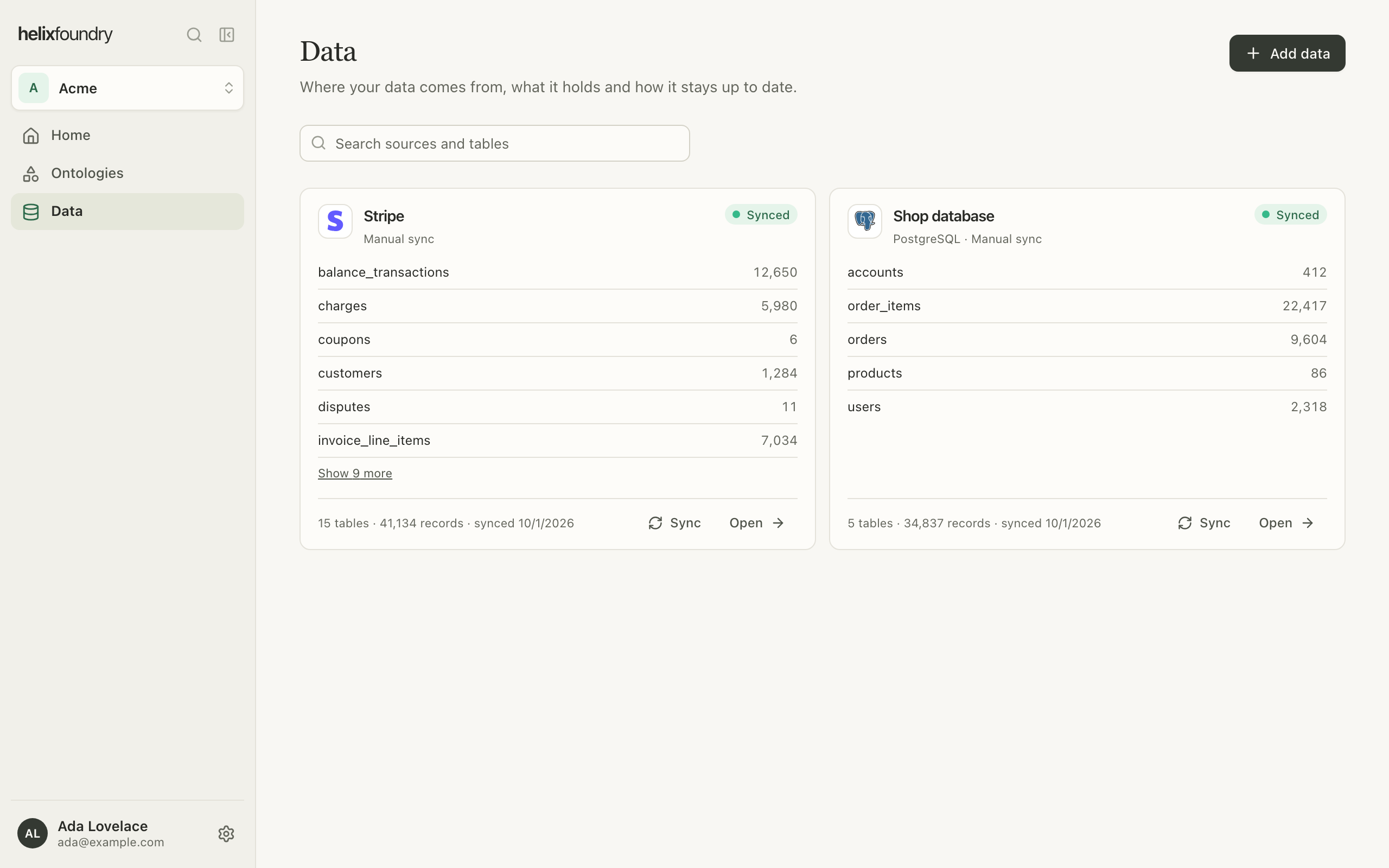
Add a connection
1
Choose the source
Select Add data, then choose where the data is. Apps are listed first, then
databases. A tick marks a kind the workspace already connects; you can add another.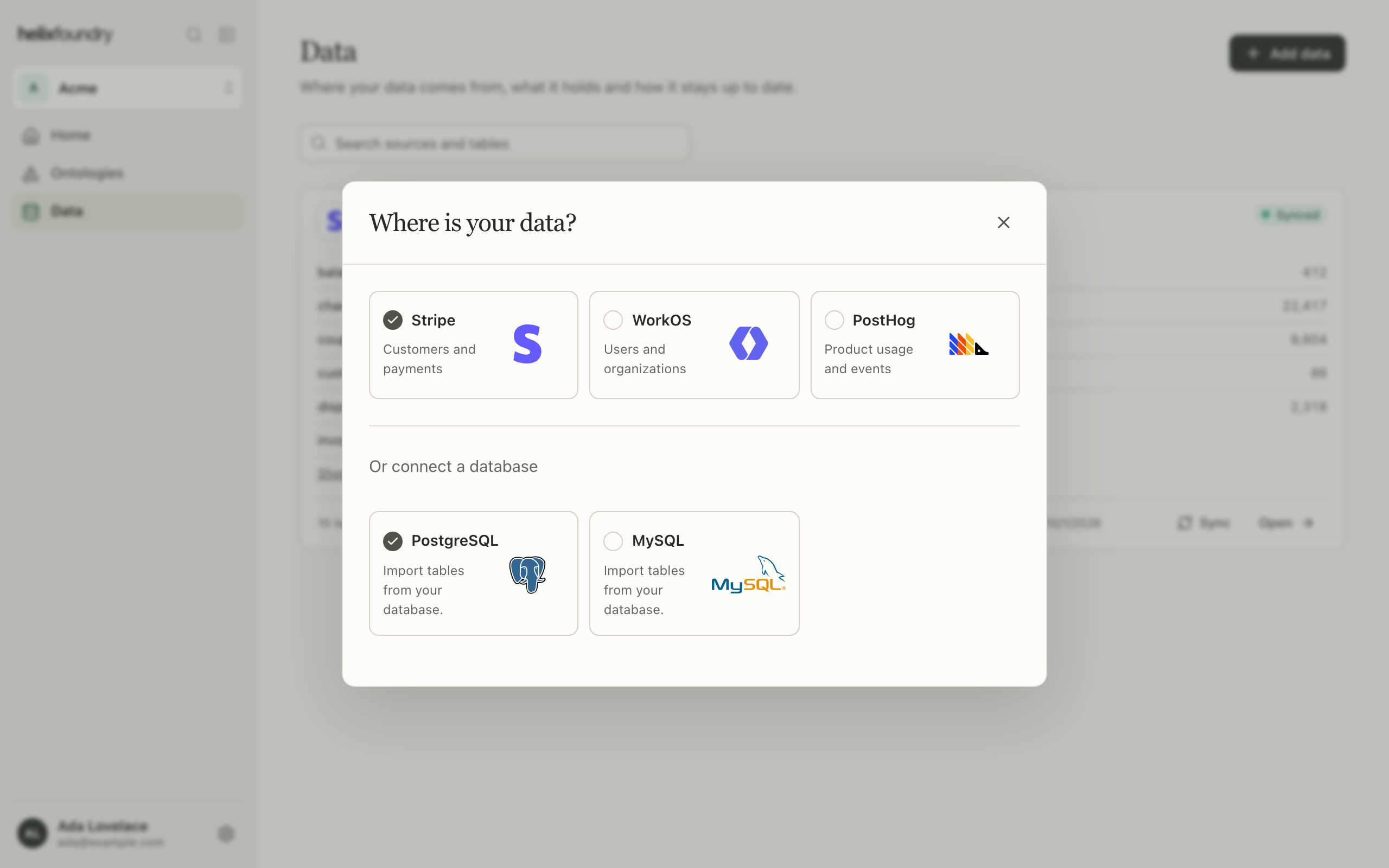
2
Create a read-only credential
Follow the numbered steps above the form. They link to the place in the source
where you create the key or user, and say which read permissions to give it.
Connectors lists them for every source.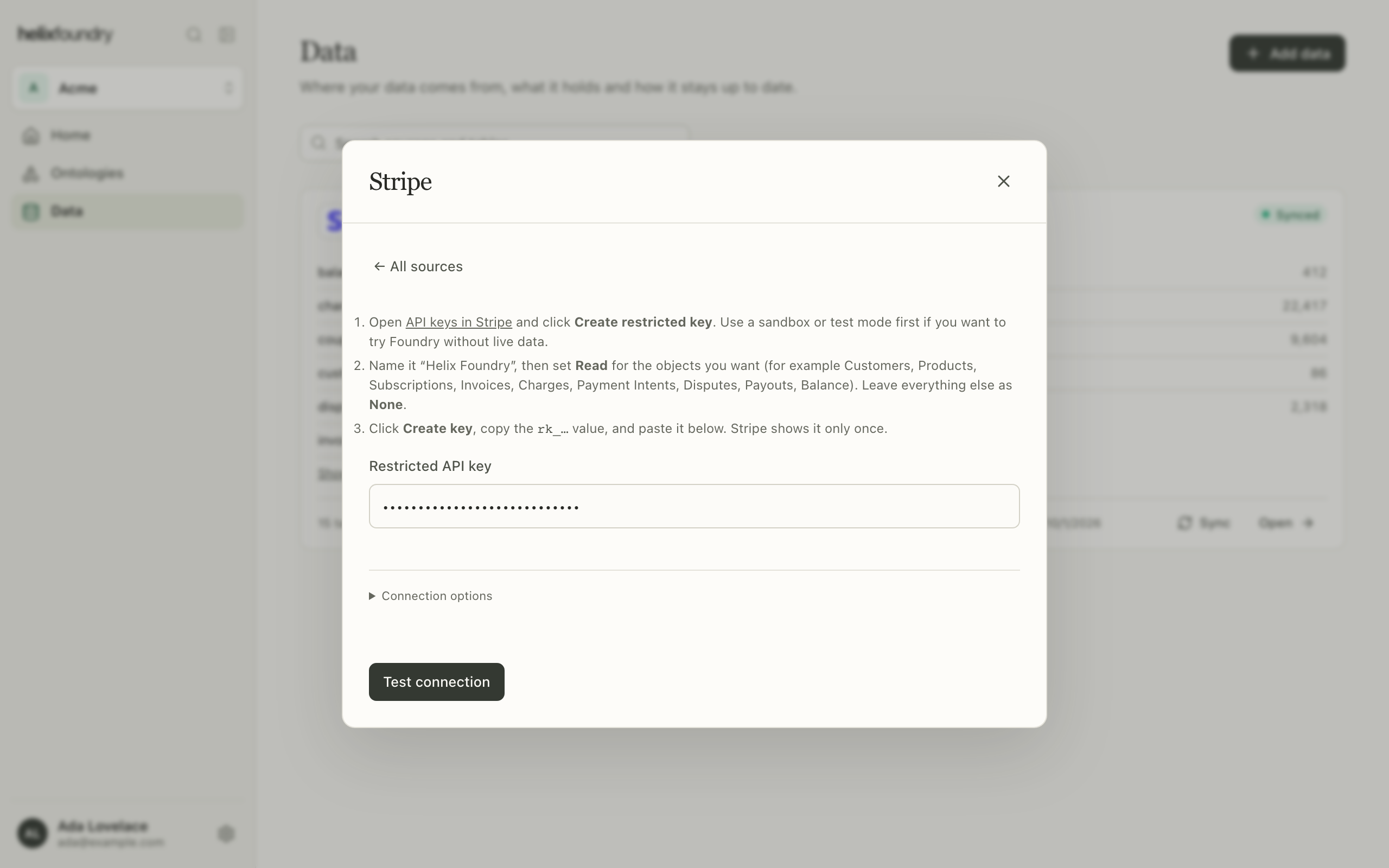 Under Connection options you can name the connection; databases also choose
their encryption there.
Under Connection options you can name the connection; databases also choose
their encryption there.
3
Test the connection
Select Test connection. Foundry reads the source with the credential and lists
what it can read: each table with its key and its links to other tables. Anything
the credential can’t read is named below the list and is skipped. For a database,
choose the tables to sync here. Every table starts selected, and keeping them all
also syncs tables added later; at least one must stay selected.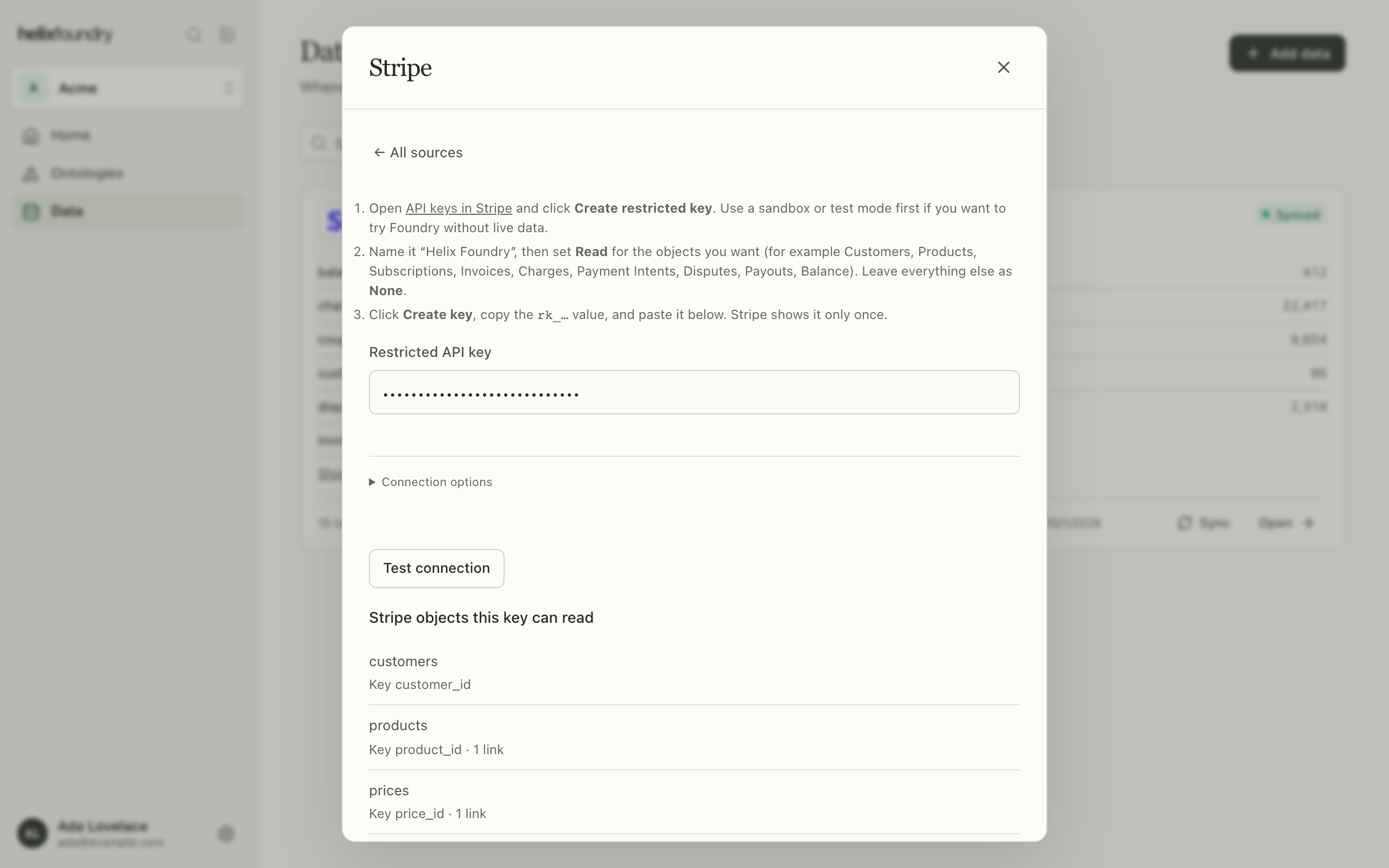
4
Connect and sync
Select Connect and sync. Foundry stores the credential encrypted, opens the
connection’s page and queues its first sync.
Follow a sync
A connection’s page shows its status, its recent syncs and its tables. A sync is Queued, then Syncing, then Synced or Failed; the page follows it as it runs. An attempt that fails for a passing reason runs again a minute or two later, shown as Retrying, up to three attempts. When a sync fails, the page says why above its history.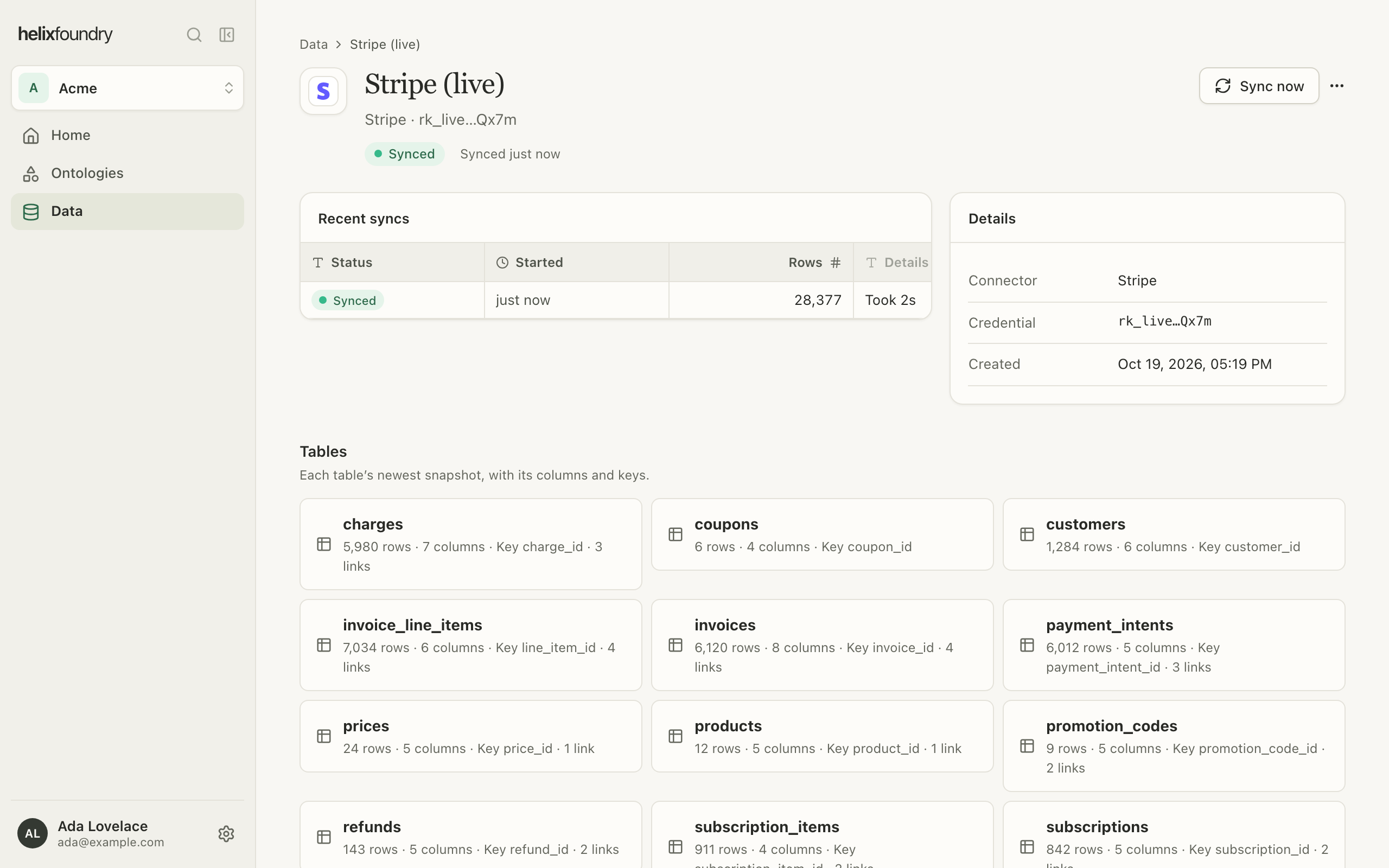
Read a synced table
Select a table to see its columns, its primary key, the columns that point at other tables, the columns in other tables that point at it, and when its snapshot was taken. An app’s columns are the fields found in its rows, without types.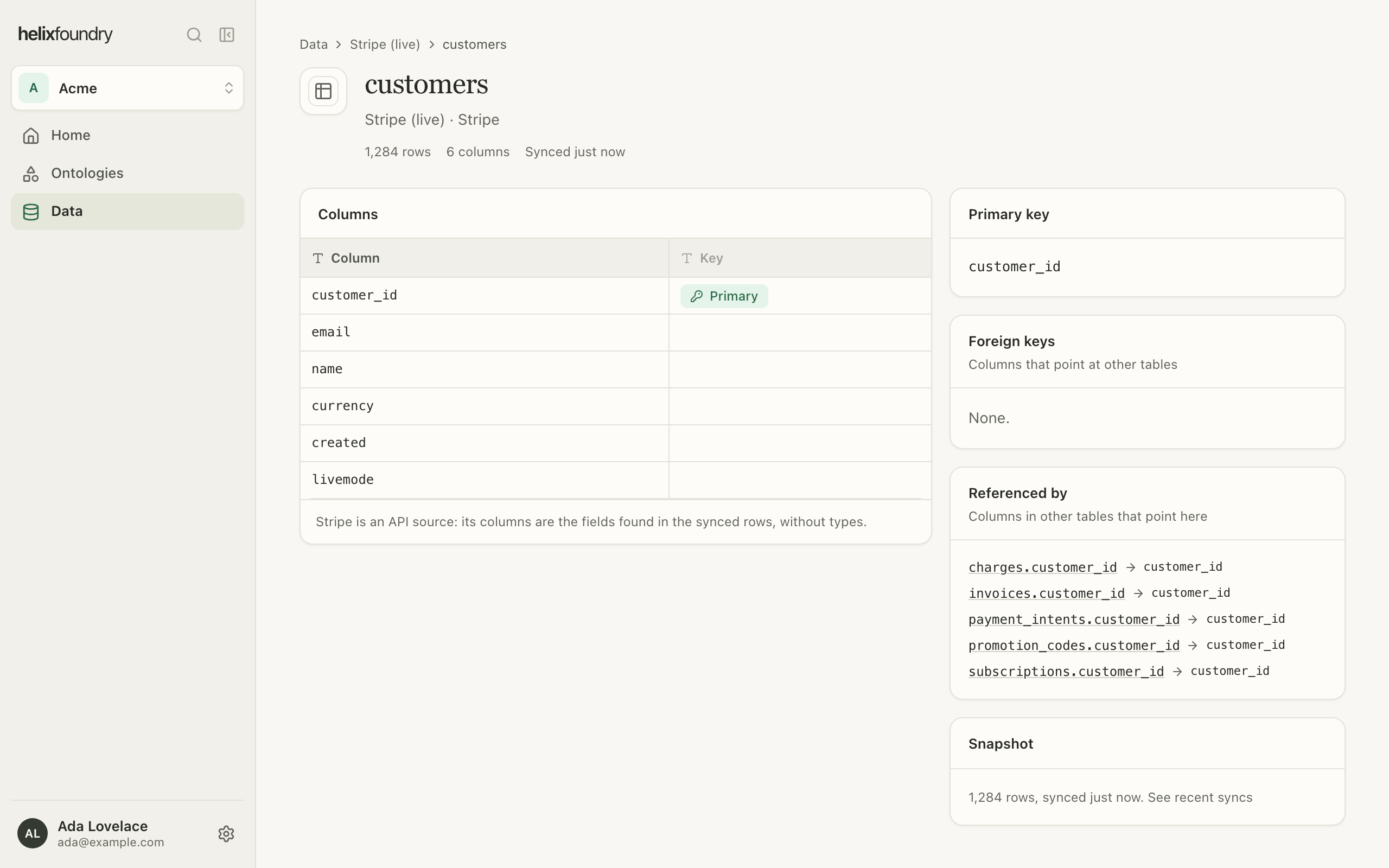
Edit or delete a connection
Open the ⋯ menu on a connection’s page:- Edit connection changes its settings or credential. Foundry tests the new settings before it saves them, and syncs again when they changed. Leave the credential blank to keep the stored one. To change which database tables sync, enter the password and test the connection again.
- Delete connection stops syncing it and removes its tables from the workspace’s data. The source itself is not changed.
rk_live…Qx7m; a database shows that a password is set.
Next steps
Connectors
What each source needs, and what it syncs.
Generate an ontology
Draft an ontology from your synced tables.