

Tutorial
This tutorial takes a new workspace from sign-in to an explored graph. You need a
Helix account and a source to read, such as a Stripe account. Owners and admins of a
workspace can do every step. Members can follow along read-only; exploring a load also
needs Query read on its database’s Helix project.
The steps below, end to end.
1
Sign in
Open foundry.helix-db.com and continue with
Google, GitHub or Microsoft, using the account you use for Helix Cloud.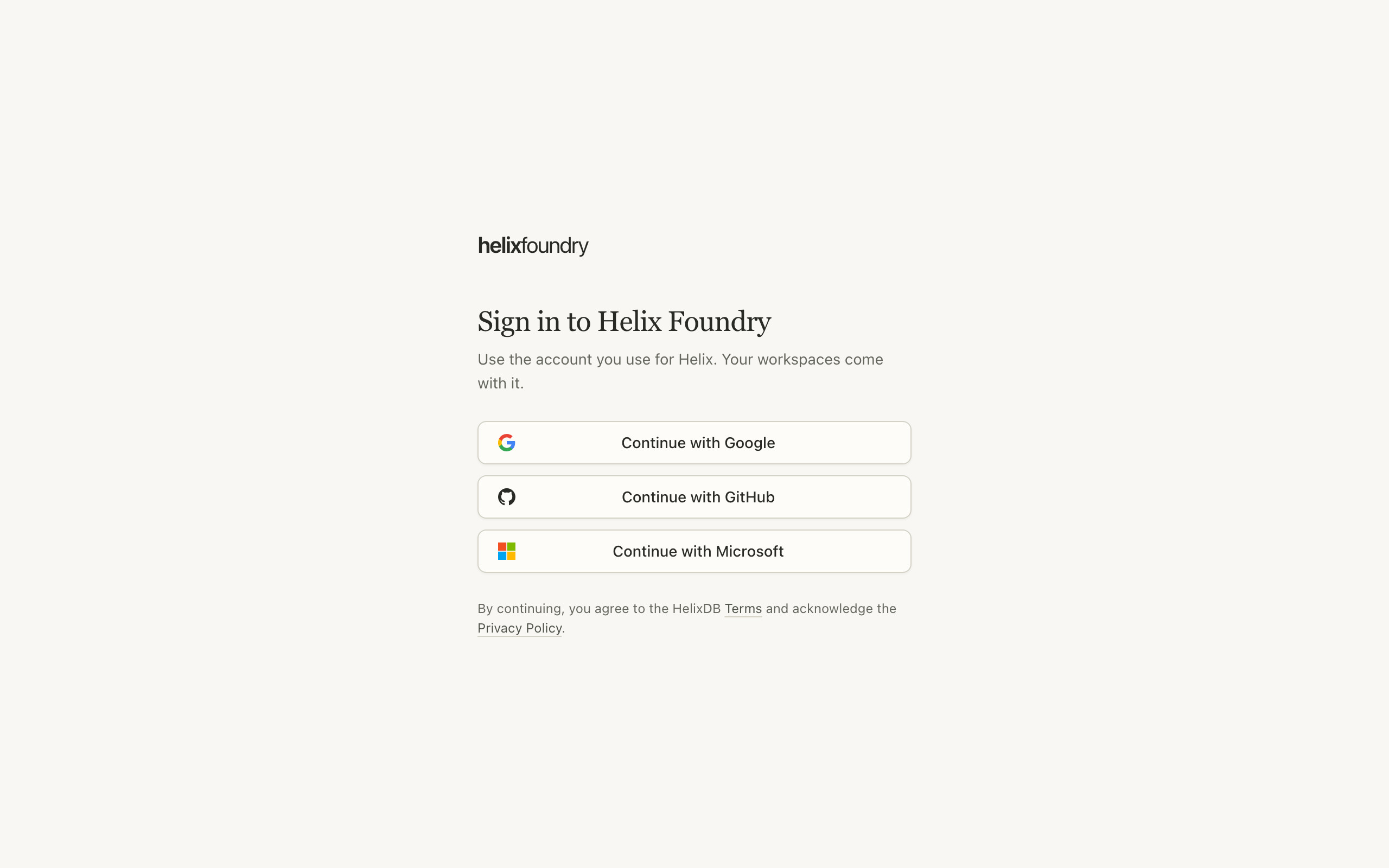
2
Choose a workspace
Foundry opens your workspace when you have one, or the workspace picker when you
have several or none. Select Create workspace to start a new one; it starts on
Foundry Free.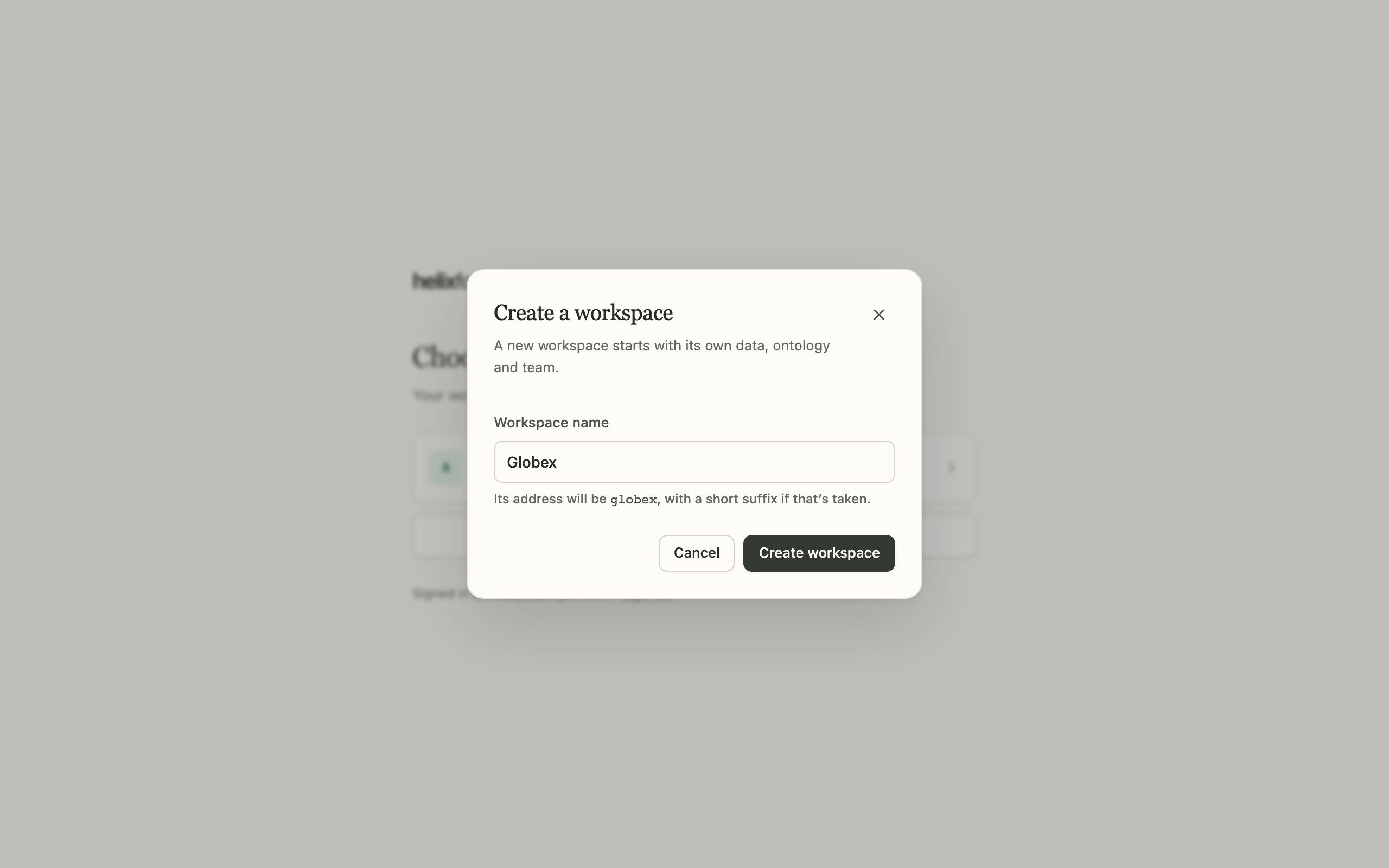
3
Connect and sync a source
In Data, select Add data, choose the source, and follow its numbered steps
to create a read-only credential. Select Test connection to see what the
credential can read, then Connect and sync. The first sync starts at once.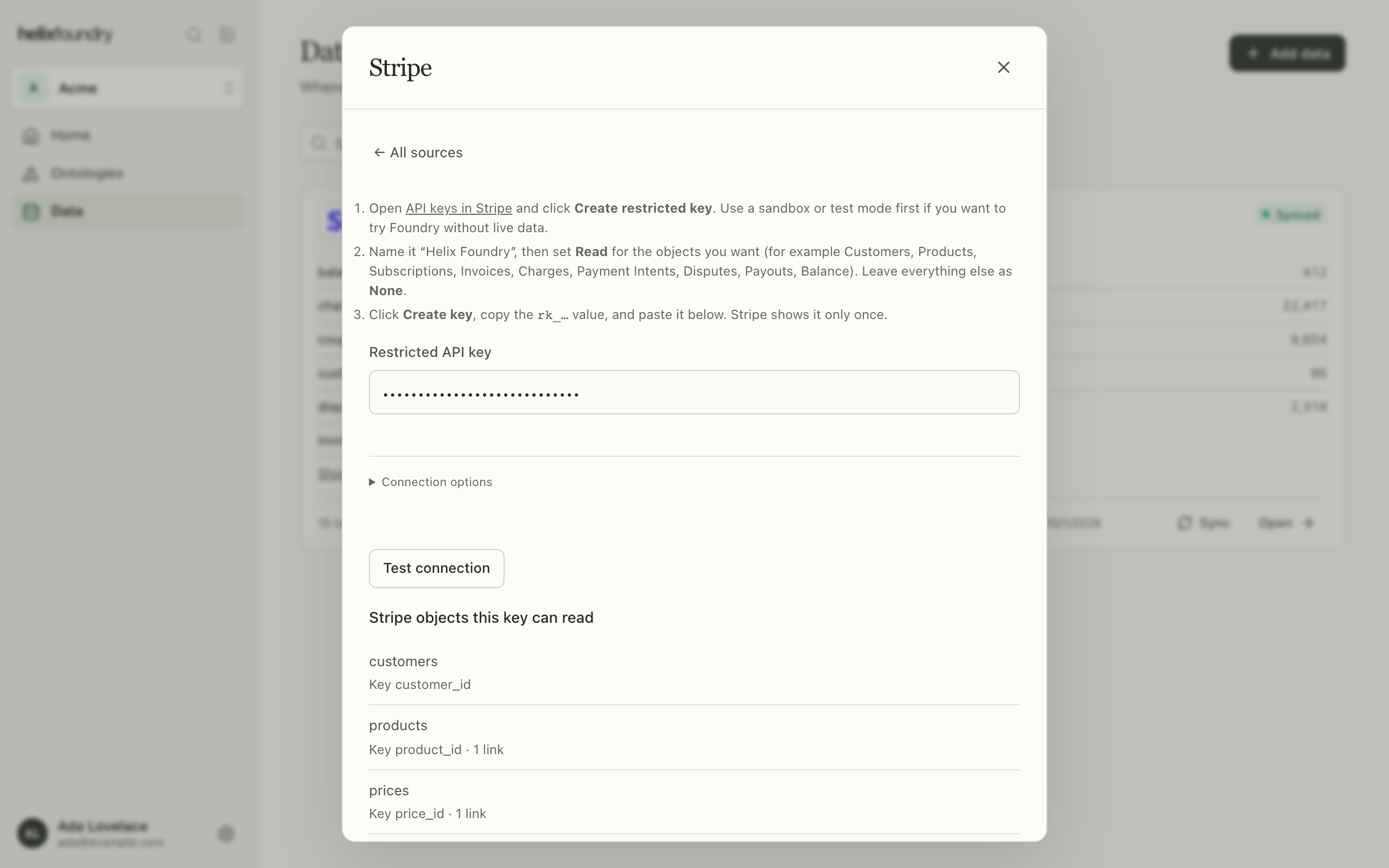 See Connect data for every source and what it needs.
4
Create an ontology
In Ontologies, select New ontology. Name it and choose the Helix database
it loads into: one you have, or a new one on Helix’s shared cluster.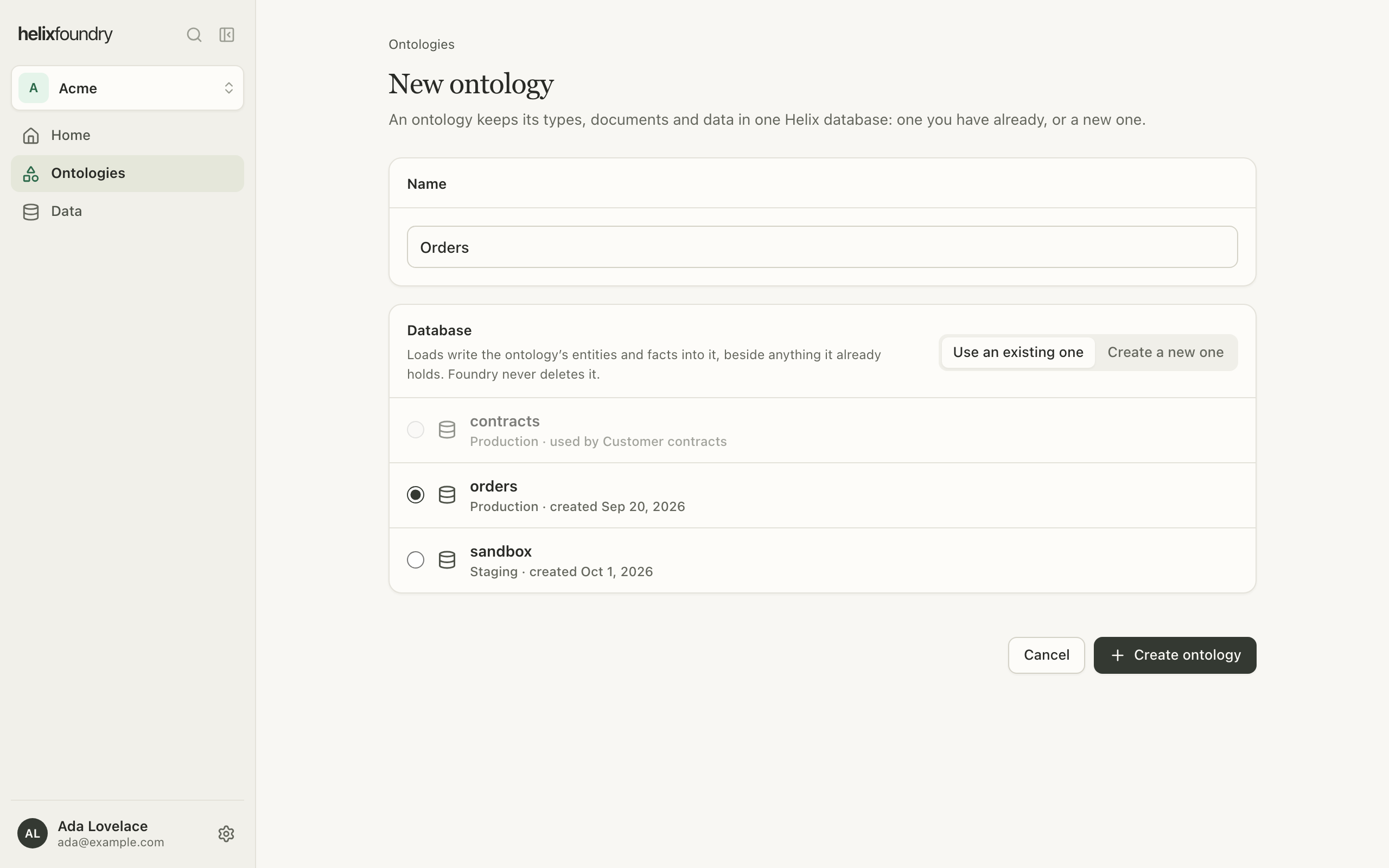
5
Generate a draft
On the ontology, select Generate. Say what the ontology should serve, choose the
connectors whose tables it reads, and select Generate. The page follows the
generation until it stores a new version.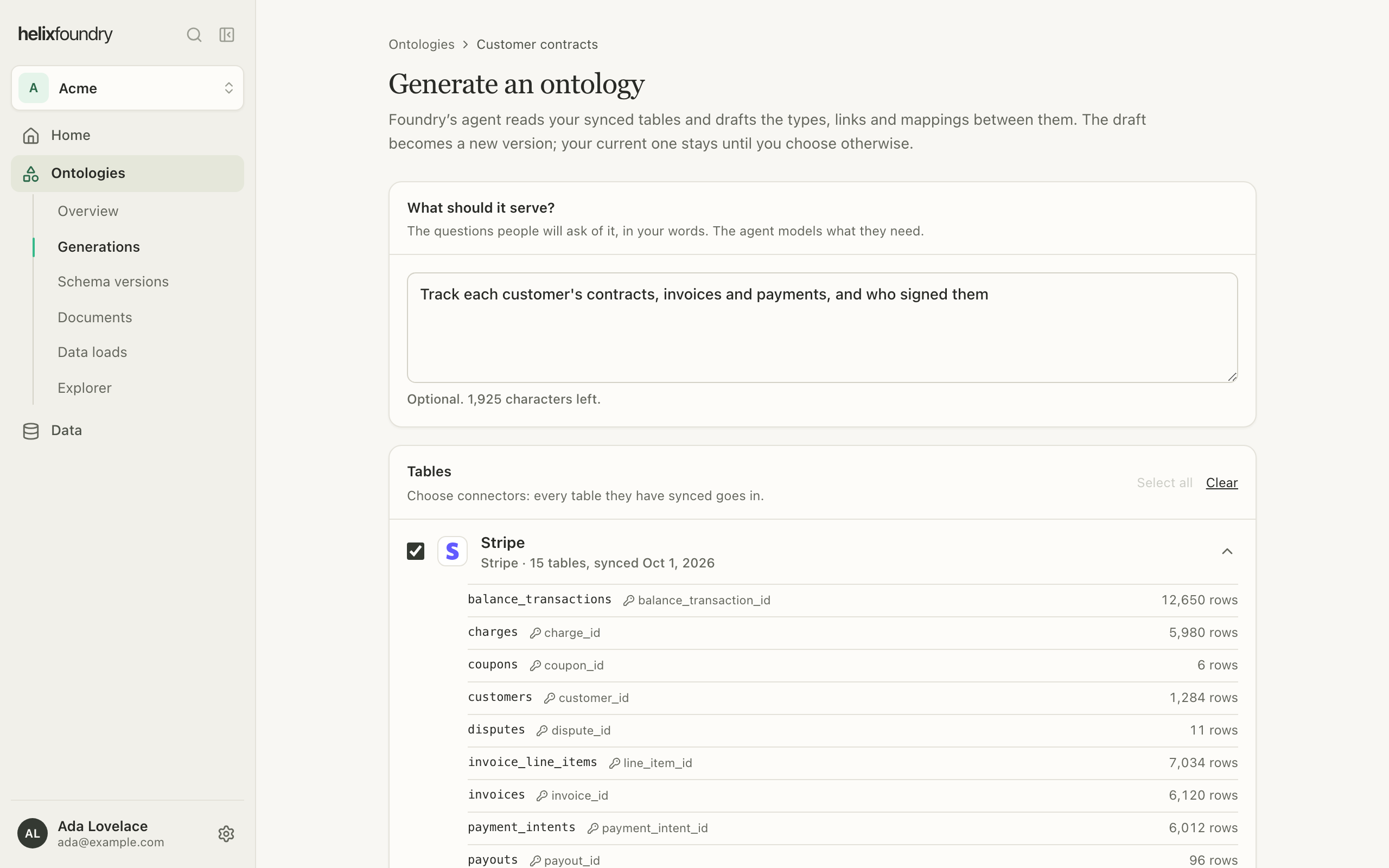
6
Review it and make it current
Select Review version. Read its types, links, mappings and rules, then select
Make current. Your earlier version stays, so you can roll back at any time.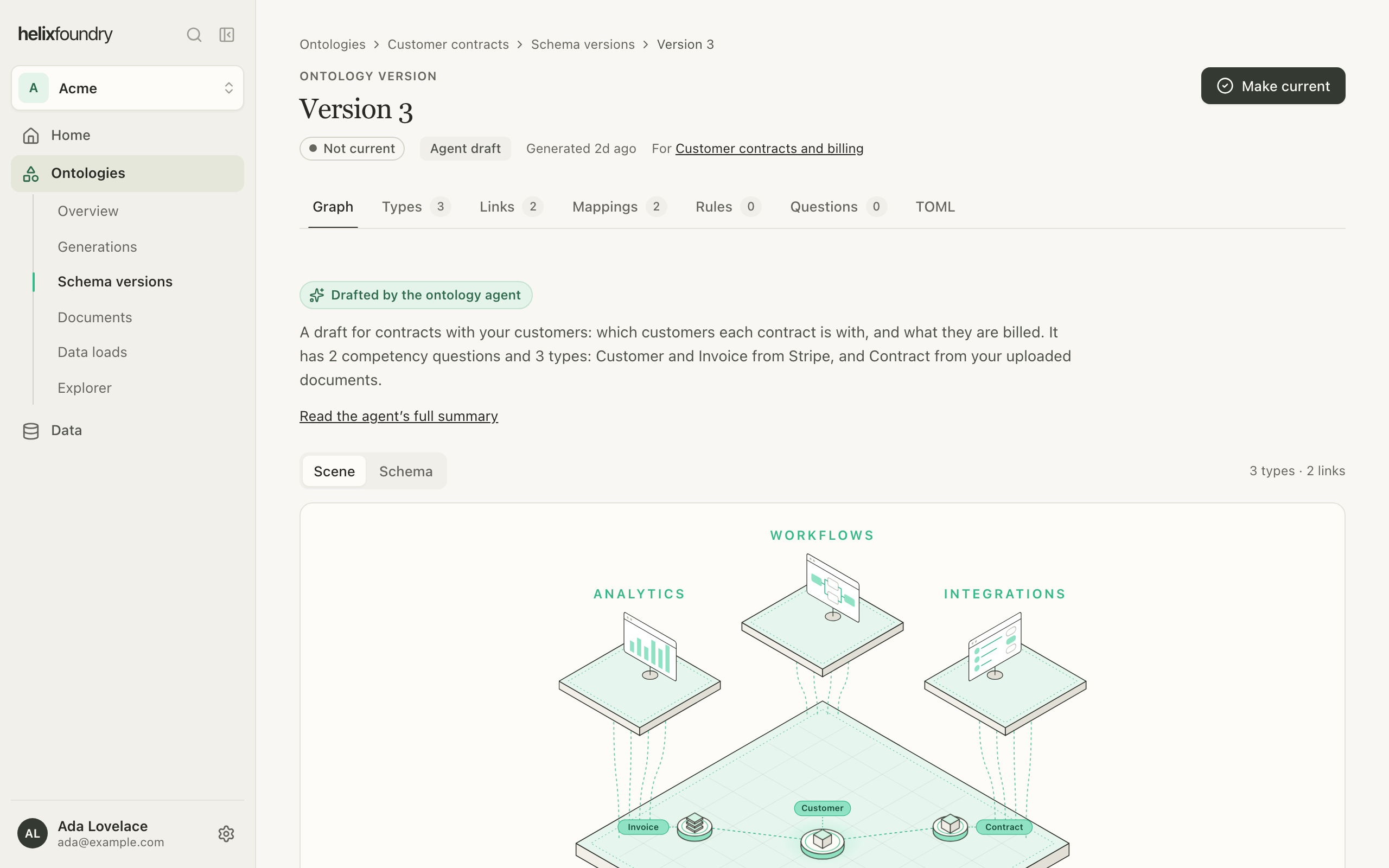
7
Load it
In Data loads, select Load data. The dialog says which tables and documents
the load reads and what it may spend; select Load. When it finishes, it becomes
the current load.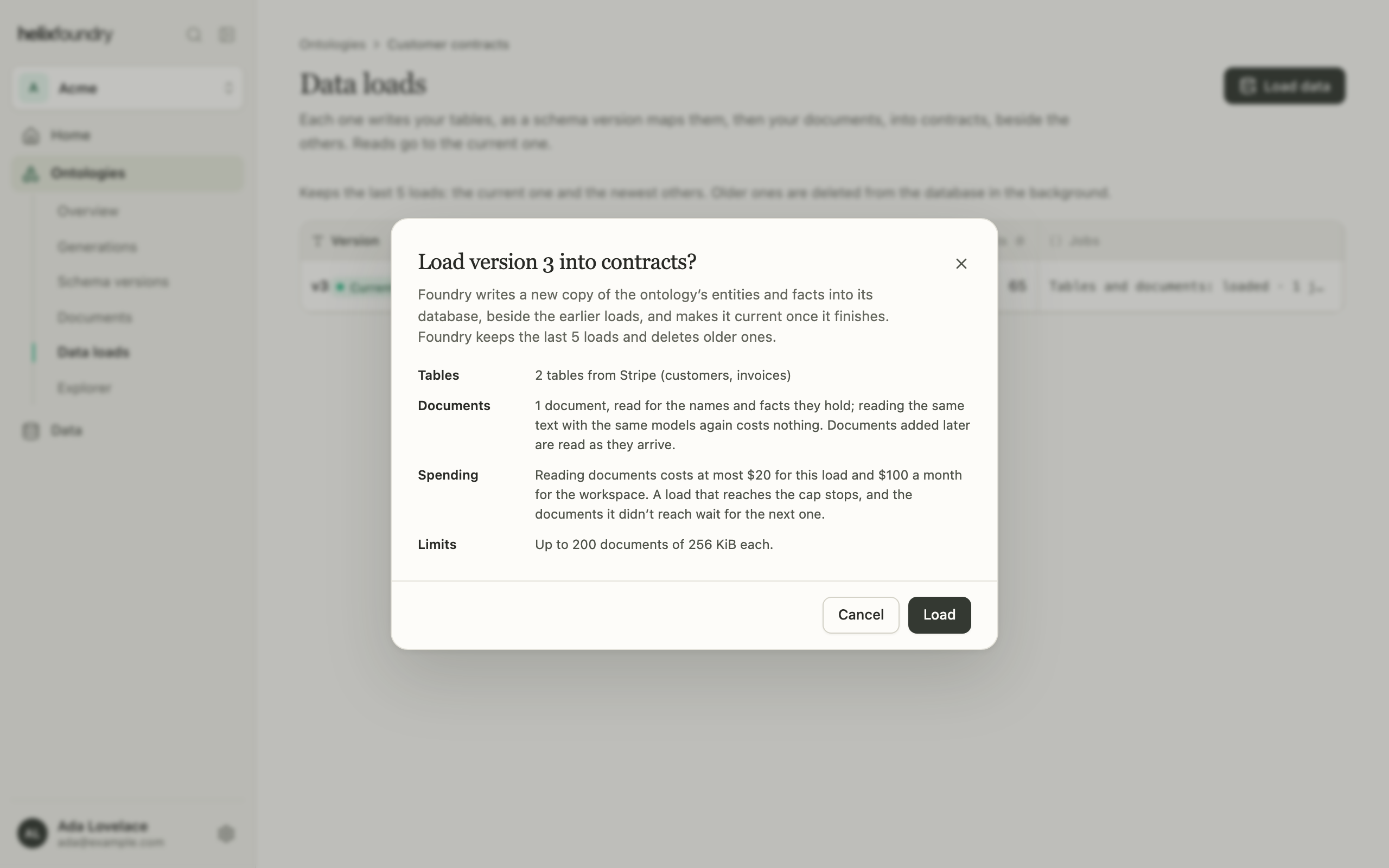
8
Explore it
Select Open Explorer. The graph opens on a connected sample of the load. Search
with /, double-click a node to expand it, or switch to Records to read
each type as a table.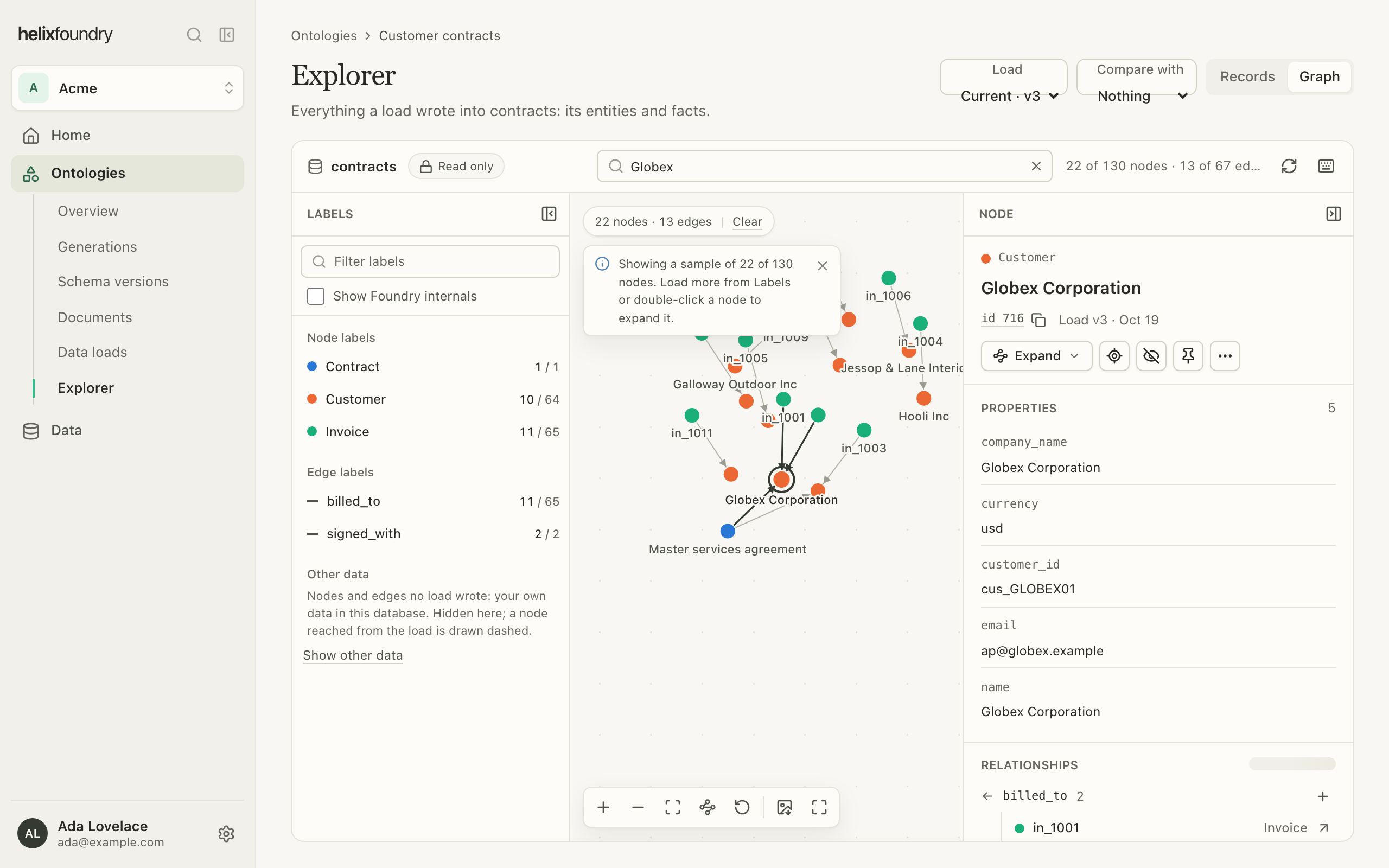
Next steps
Upload documents
Add contracts and notes so loads fill types from their text.
Invite your team
Invite members and admins to the workspace.
Connect a database
PostgreSQL and MySQL need Foundry Pro.
Troubleshooting
What each error and waiting state means.