> ## Documentation Index
> Fetch the complete documentation index at: https://docs.helix-db.com/llms.txt
> Use this file to discover all available pages before exploring further.
# Plans and billing
> Compare Helix Foundry Free, Pro and Max, upgrade a workspace, switch tiers, cancel, resume and manage payment
Guide
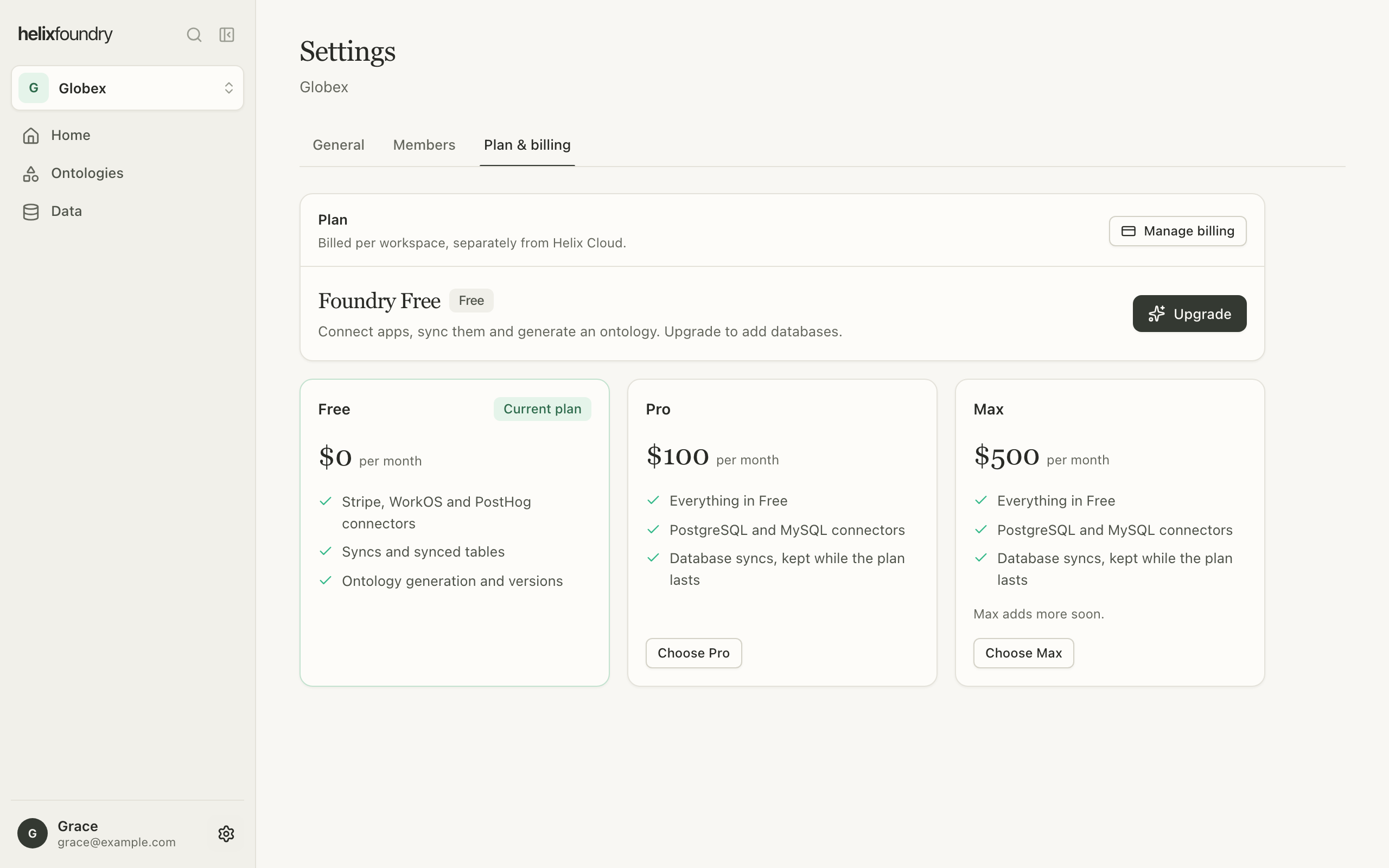
Each workspace has one Foundry plan, billed monthly and separately from Helix Cloud.
Owners and admins change it in **Settings** → **Plan & billing**; members see which plan
the workspace holds.
| | Free | Pro | Max |
| - | - | - | - |
| Price | \$0 | \$100 a month | \$500 a month |
| Stripe, WorkOS and PostHog | ✓ | ✓ | ✓ |
| Syncs and synced tables | ✓ | ✓ | ✓ |
| Ontology generation and versions | ✓ | ✓ | ✓ |
| PostgreSQL and MySQL | | ✓ | ✓ |
Max includes everything in Pro, and will add more.
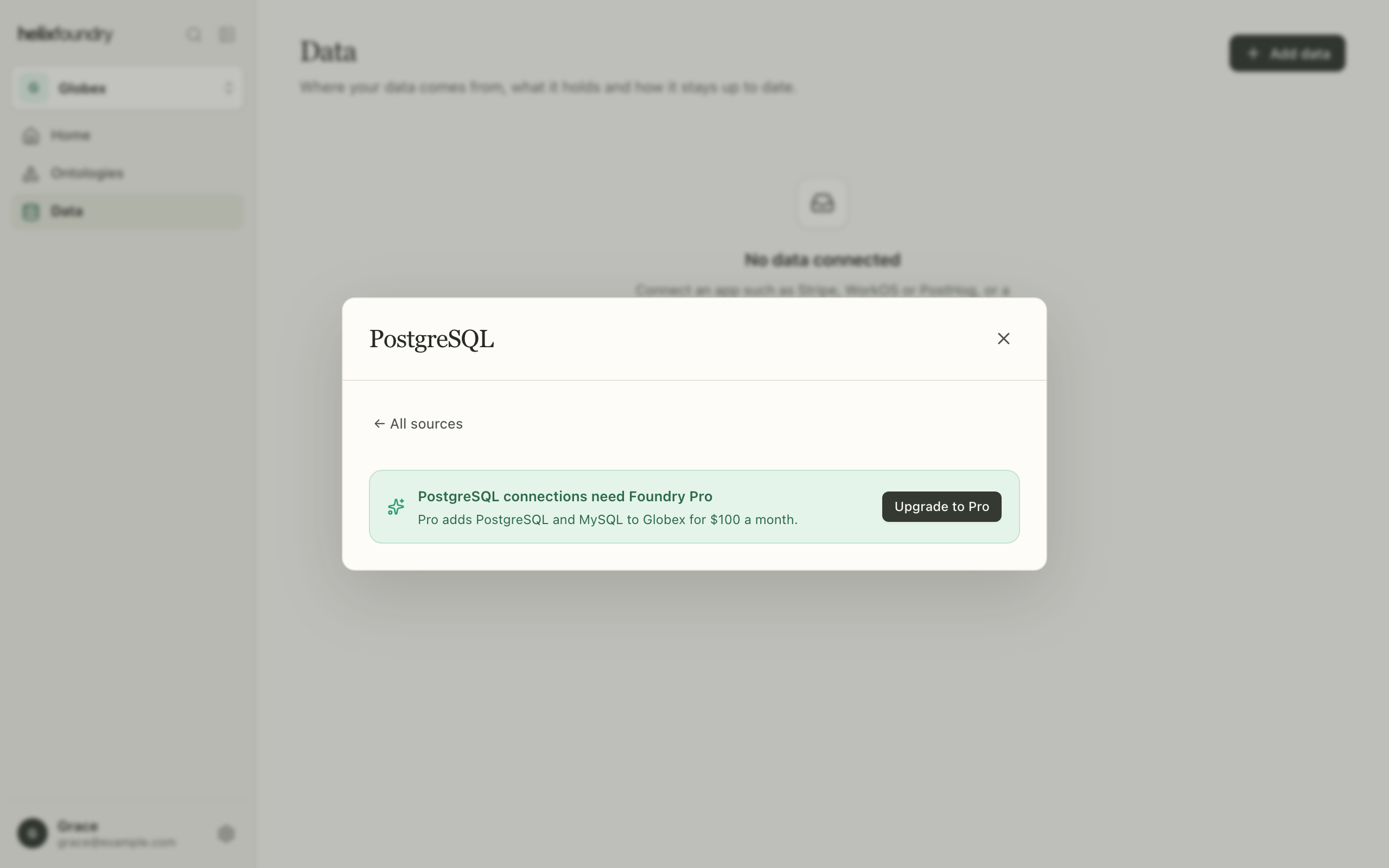
On Free, choosing PostgreSQL or MySQL in **Add data** says the source needs Pro, and
offers owners and admins **Upgrade to Pro**.
 ## Upgrade
Select **Upgrade**, choose **Pro** or **Max**, and add a promotion code if you have
one.
## Upgrade
Select **Upgrade**, choose **Pro** or **Max**, and add a promotion code if you have
one.
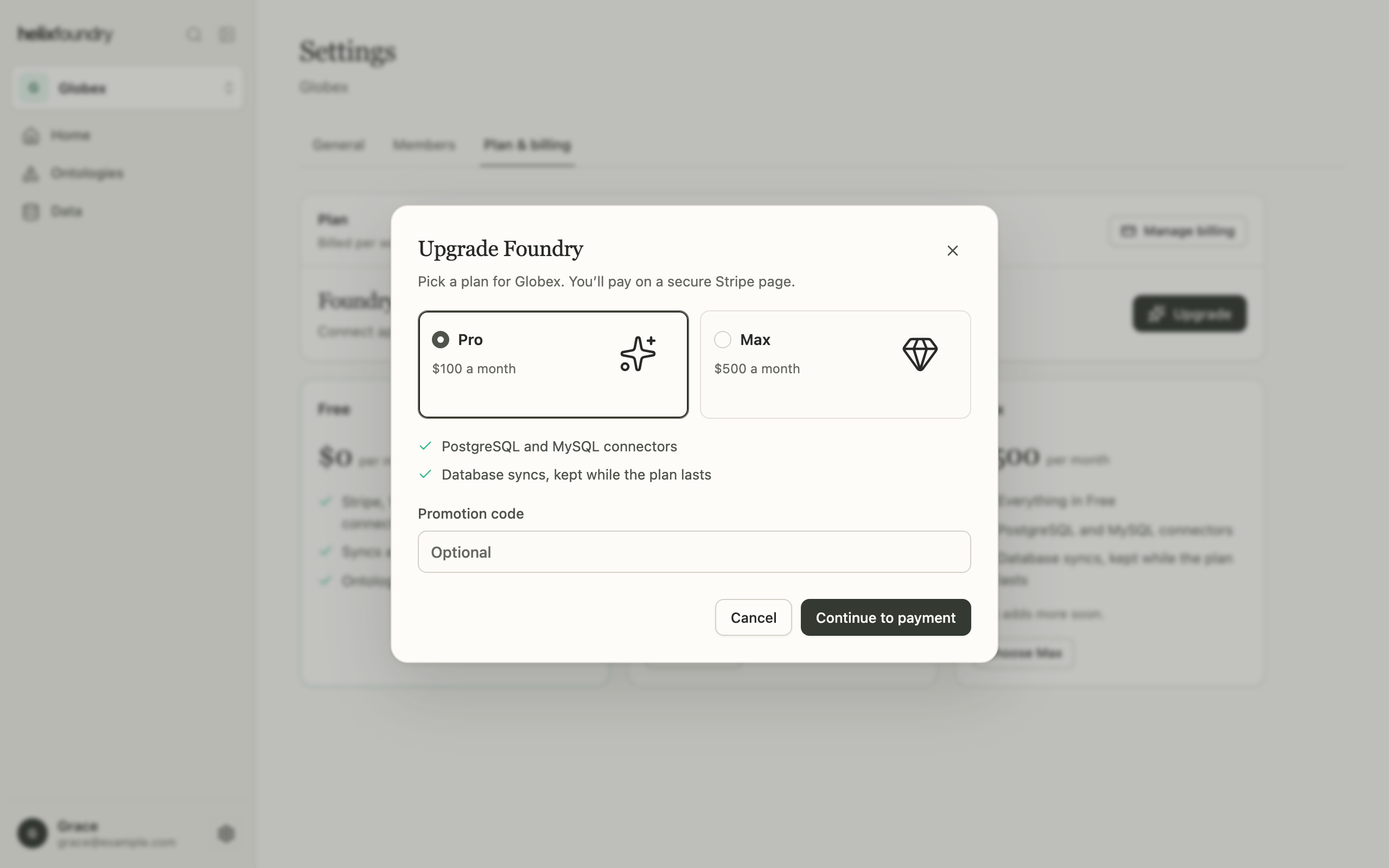 Select **Continue to payment**. Foundry opens Stripe Checkout, or charges the card on
file when the workspace has one.
Stripe returns you to **Plan & billing**, which checks the payment until the new plan
shows. PostgreSQL and MySQL are available at once.
If an upgrade's answer is lost, for example when the network drops, the page checks the
plan before it offers checkout again, so you aren't charged twice.
## Switch between Pro and Max
On a paid workspace, select **Switch to Max** or **Switch to Pro** on the other tier's
card and confirm.
Select **Continue to payment**. Foundry opens Stripe Checkout, or charges the card on
file when the workspace has one.
Stripe returns you to **Plan & billing**, which checks the payment until the new plan
shows. PostgreSQL and MySQL are available at once.
If an upgrade's answer is lost, for example when the network drops, the page checks the
plan before it offers checkout again, so you aren't charged twice.
## Switch between Pro and Max
On a paid workspace, select **Switch to Max** or **Switch to Pro** on the other tier's
card and confirm.
 ## Cancel or resume
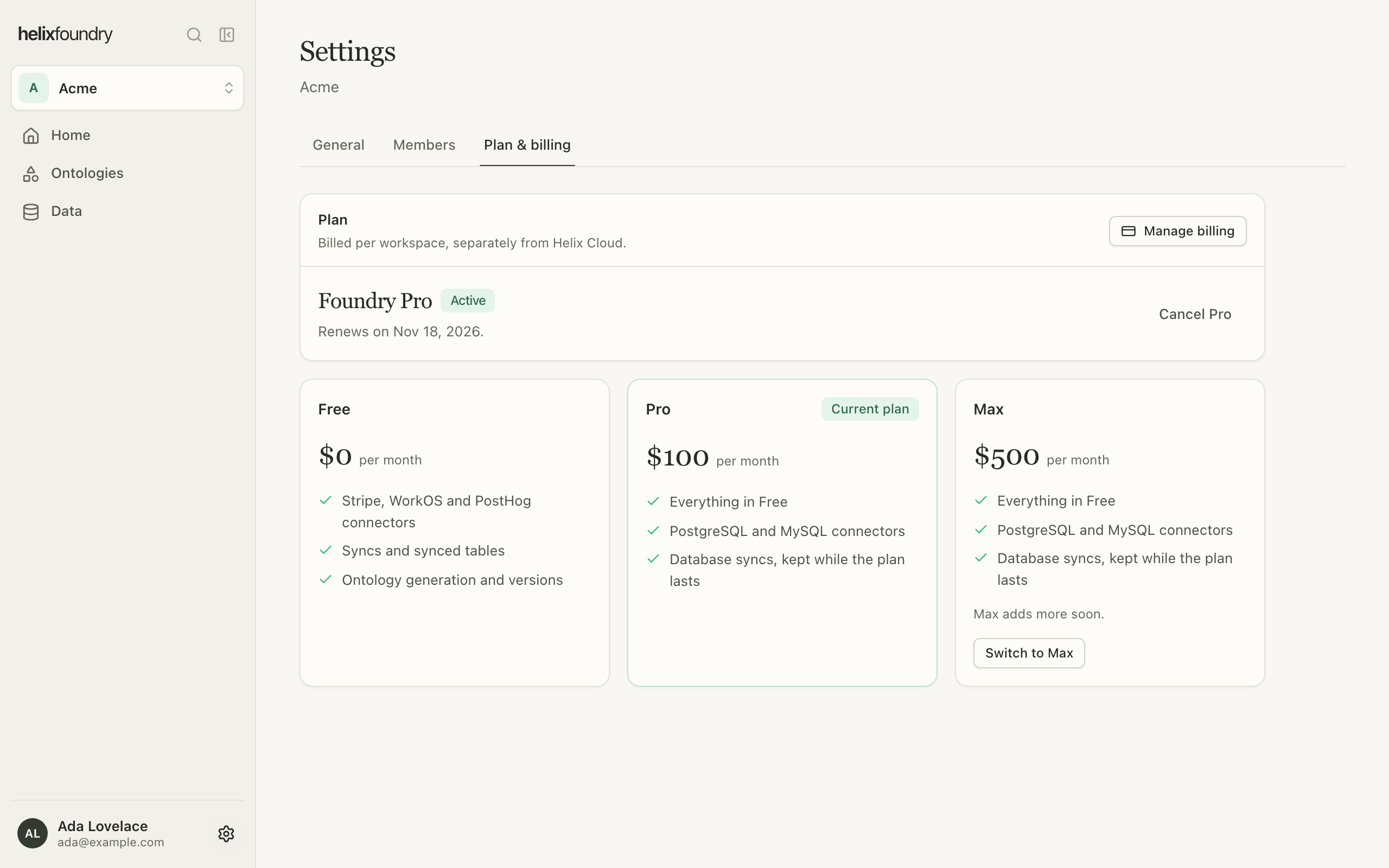
Select **Cancel Pro** (or **Cancel Max**) and confirm. The plan stays on until the end
of the period, then the workspace moves to Free and its PostgreSQL and MySQL connections
stop syncing. Until then, **Resume Pro** (or **Resume Max**) undoes the cancellation.
## Manage payment and invoices
Select **Manage billing** to open the Stripe billing portal for the workspace: payment
methods, invoices and billing details. When an invoice isn't paid, the page says so and
offers **Update payment method**; cancelling and switching wait until it's paid.
## Next steps
Set up a PostgreSQL or MySQL connection.
Who can change the plan.
This documentation is built and hosted on [Mintlify](https://mintlify.com), a developer documentation platform.
## Cancel or resume
Select **Cancel Pro** (or **Cancel Max**) and confirm. The plan stays on until the end
of the period, then the workspace moves to Free and its PostgreSQL and MySQL connections
stop syncing. Until then, **Resume Pro** (or **Resume Max**) undoes the cancellation.
## Manage payment and invoices
Select **Manage billing** to open the Stripe billing portal for the workspace: payment
methods, invoices and billing details. When an invoice isn't paid, the page says so and
offers **Update payment method**; cancelling and switching wait until it's paid.
## Next steps
Set up a PostgreSQL or MySQL connection.
Who can change the plan.
This documentation is built and hosted on [Mintlify](https://mintlify.com), a developer documentation platform.