> ## Documentation Index
> Fetch the complete documentation index at: https://docs.helix-db.com/llms.txt
> Use this file to discover all available pages before exploring further.
# Create an ontology
> Create a Helix Foundry ontology on an existing Helix database or a new one, and read its overview
Guide
An ontology holds the types, links and rules that describe your data, with its
versions, documents and loads. Each one is bound to one Helix database, which its loads
write into. A workspace can have several ontologies, one per database.
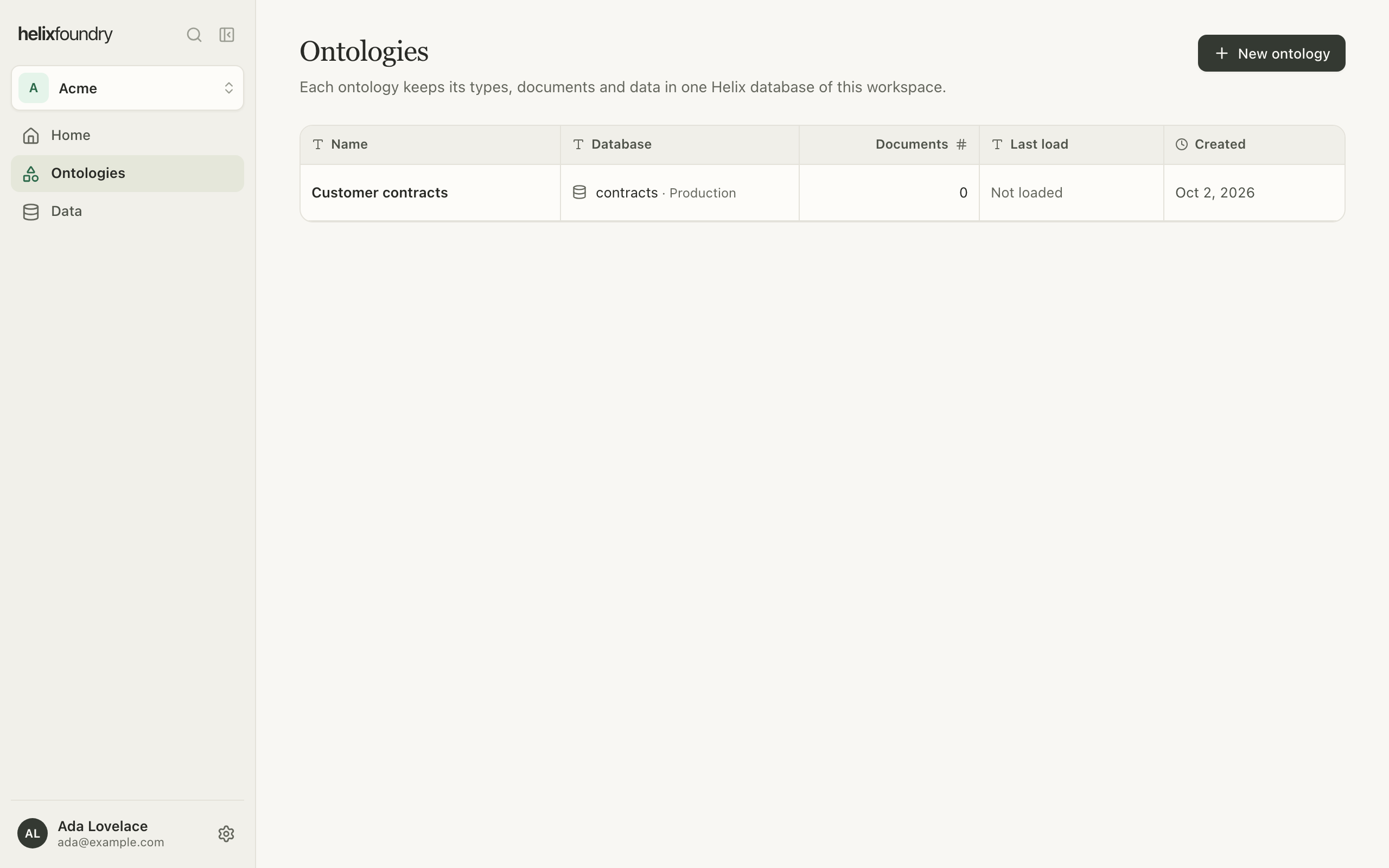
**Ontologies** lists the workspace's ontologies with the database each one uses.
 ## Create one
In **Ontologies**, select **New ontology** and give it a name, such as "Customer
contracts".
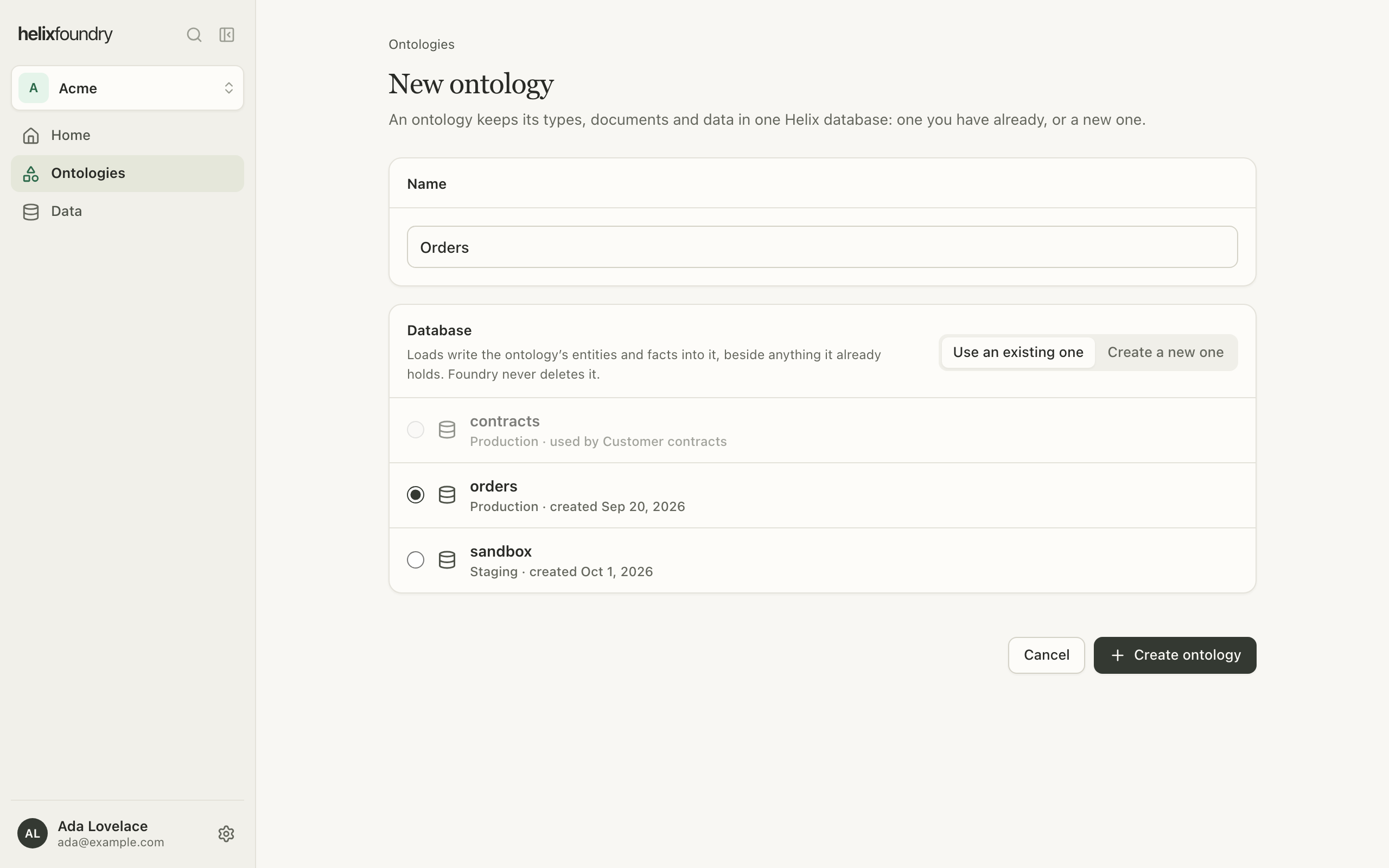
**Use an existing one** lists the live databases in the workspace's Helix projects.
A database another ontology uses is greyed out. Loads write beside anything the
database already holds, and Foundry never deletes it.
## Create one
In **Ontologies**, select **New ontology** and give it a name, such as "Customer
contracts".
**Use an existing one** lists the live databases in the workspace's Helix projects.
A database another ontology uses is greyed out. Loads write beside anything the
database already holds, and Foundry never deletes it.
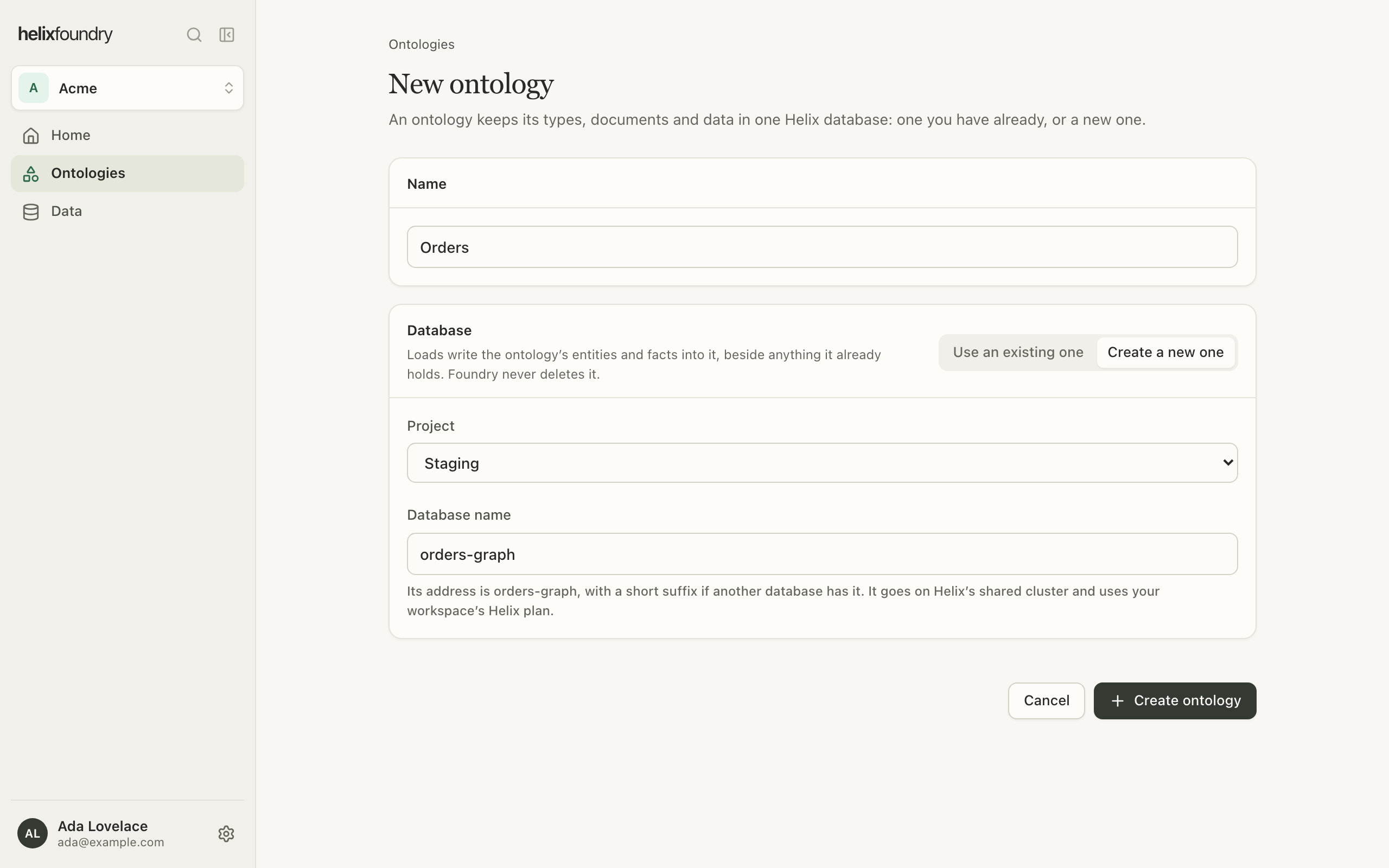
 **Create a new one** makes a database in the project you choose, on Helix's shared
cluster, under the workspace's Helix plan. Its address is the name you give it, with
a short suffix when another database already has it.
**Create a new one** makes a database in the project you choose, on Helix's shared
cluster, under the workspace's Helix plan. Its address is the name you give it, with
a short suffix when another database already has it.
 Select **Create ontology**. The ontology opens on its overview, ready for its first
[generation](/foundry/ontologies/generate-and-version).
A new database comes with a first API key. Foundry never keeps or shows its token;
right after you create the ontology, its overview says so once and links to the
database's keys in the Helix dashboard, where you can revoke it or make your own.
A new database takes a few minutes to start. Until it answers, the ontology's pages say
it is starting and read it again by themselves, and a load waits for it.
Creating a database needs a Helix plan on the workspace. Without one, the form links to
billing in the Helix dashboard and offers the databases you already have.
## The overview
An ontology's overview shows its current version as a scene or as a schema, and what
needs doing next: a generated version to review, or a current version that isn't
loaded yet.
Select **Create ontology**. The ontology opens on its overview, ready for its first
[generation](/foundry/ontologies/generate-and-version).
A new database comes with a first API key. Foundry never keeps or shows its token;
right after you create the ontology, its overview says so once and links to the
database's keys in the Helix dashboard, where you can revoke it or make your own.
A new database takes a few minutes to start. Until it answers, the ontology's pages say
it is starting and read it again by themselves, and a load waits for it.
Creating a database needs a Helix plan on the workspace. Without one, the form links to
billing in the Helix dashboard and offers the databases you already have.
## The overview
An ontology's overview shows its current version as a scene or as a schema, and what
needs doing next: a generated version to review, or a current version that isn't
loaded yet.
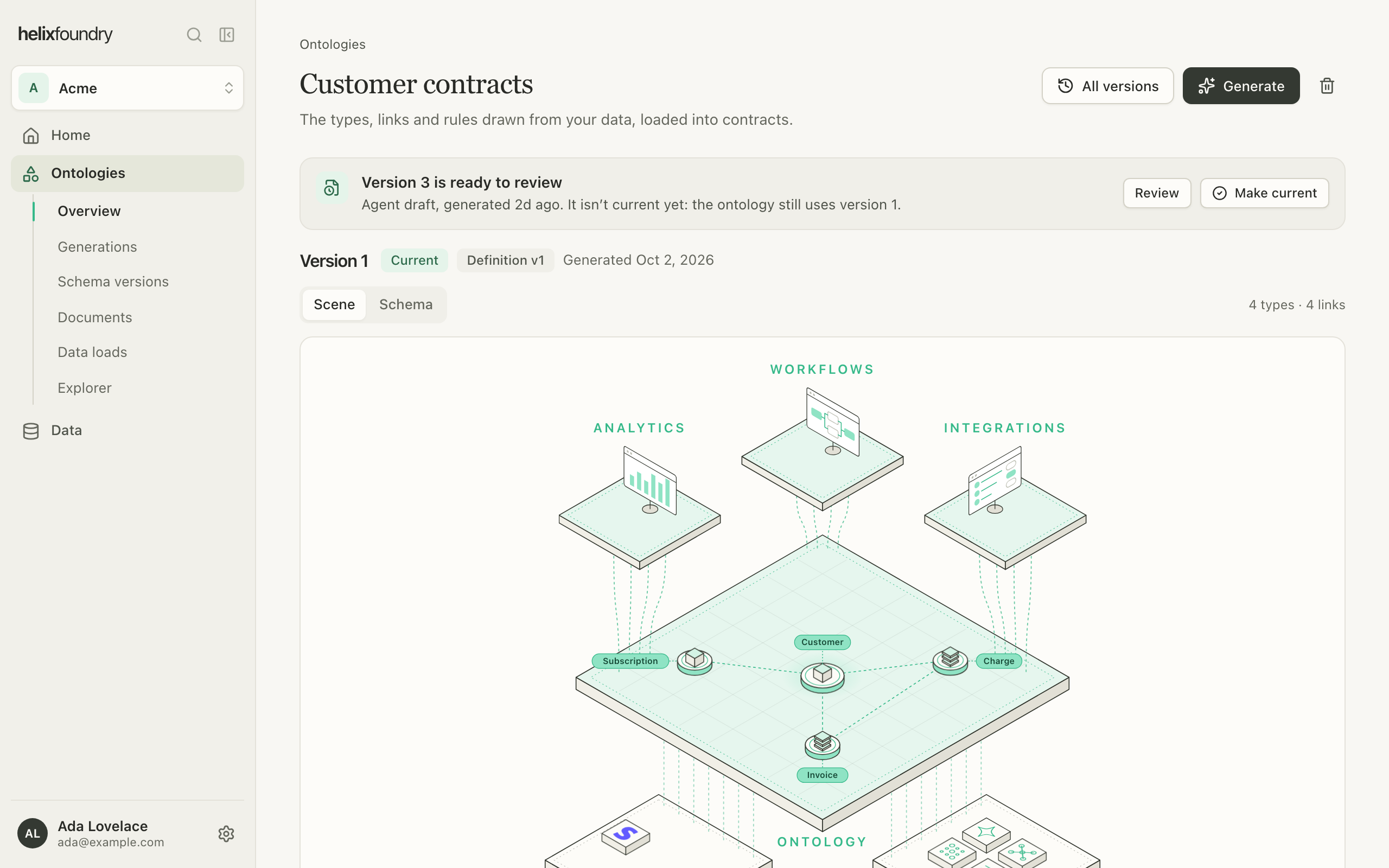 The sidebar lists the ontology's pages: **Overview**, **Generations**, **Schema
versions**, **Documents**, **Data loads** and **Explorer**.
## Delete an ontology
Select the bin on the overview. Foundry deletes the ontology, its versions and
documents, and, in the background, everything its loads wrote into the database,
including links your own data added to those records. The database and its other data
stay. The database can take a new ontology once that removal finishes.
## Who can do what
Owners and admins create and delete ontologies, and need write access to the
database's Helix project to do so. Members see every ontology. A member who can't read
the database's project sees the ontology without its database's details or contents.
## Next steps
Draft a version from your synced tables.
Add the files a load reads for names and facts.
This documentation is built and hosted on [Mintlify](https://mintlify.com), a developer documentation platform.
The sidebar lists the ontology's pages: **Overview**, **Generations**, **Schema
versions**, **Documents**, **Data loads** and **Explorer**.
## Delete an ontology
Select the bin on the overview. Foundry deletes the ontology, its versions and
documents, and, in the background, everything its loads wrote into the database,
including links your own data added to those records. The database and its other data
stay. The database can take a new ontology once that removal finishes.
## Who can do what
Owners and admins create and delete ontologies, and need write access to the
database's Helix project to do so. Members see every ontology. A member who can't read
the database's project sees the ontology without its database's details or contents.
## Next steps
Draft a version from your synced tables.
Add the files a load reads for names and facts.
This documentation is built and hosted on [Mintlify](https://mintlify.com), a developer documentation platform.