> ## Documentation Index
> Fetch the complete documentation index at: https://docs.helix-db.com/llms.txt
> Use this file to discover all available pages before exploring further.
# Connectors
> What each Helix Foundry source needs, the permissions to give it, the tables it syncs and its limits
Reference
Foundry reads five kinds of source. Apps sync every table their credential can read;
databases sync the tables you choose. Every credential only needs read access.
| Source | Credential | Plan |
| - | - | - |
| [Stripe](#stripe) | Restricted (`rk_`) or secret (`sk_`) API key | Free |
| [WorkOS](#workos) | Secret API key (`sk_`) | Free |
| [PostHog](#posthog) | Personal API key (`phx_`) | Free |
| [PostgreSQL](#postgresql) | Database user and password | [Pro or Max](/foundry/workspace/plans-and-billing) |
| [MySQL](#mysql) | Database user and password | [Pro or Max](/foundry/workspace/plans-and-billing) |
## Stripe
In Stripe, open **API keys** and select **Create restricted key**. Name it "Helix
Foundry", set **Read** on the objects you want and leave everything else as **None**.
Foundry reads test or live data, as the key says. Use a sandbox or test mode key first
to try Foundry without live data.
Syncs `customers`, `products`, `prices`, `coupons`, `promotion_codes`, `subscriptions`,
`subscription_items`, `invoices`, `invoice_line_items`, `charges`, `payment_intents`,
`refunds`, `disputes`, `payouts` and `balance_transactions`. A table the key can't read
is skipped and named after the test; the test fails only when the key can read none.
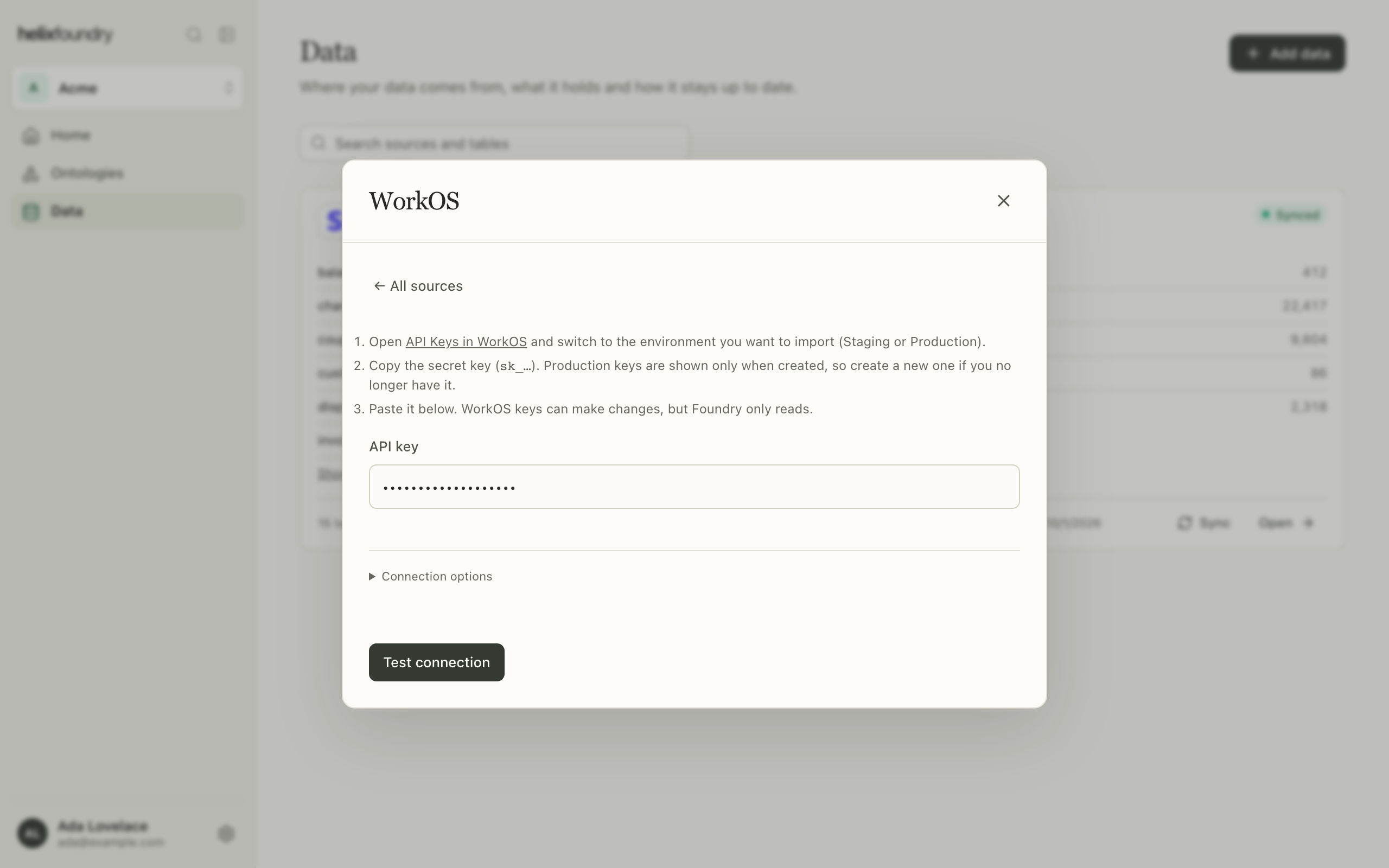
## WorkOS
In WorkOS, open **API Keys** in the environment you want to import (Staging or
Production) and copy the secret key. Production keys are shown only when created, so
create a new one if you no longer have it. WorkOS keys can make changes, but Foundry
only reads.
Syncs `organizations`, `users`, `organization_memberships`, `invitations`,
`sso_connections`, `directories`, `directory_users`, `directory_groups` and
`directory_group_members`.
 ## PostHog
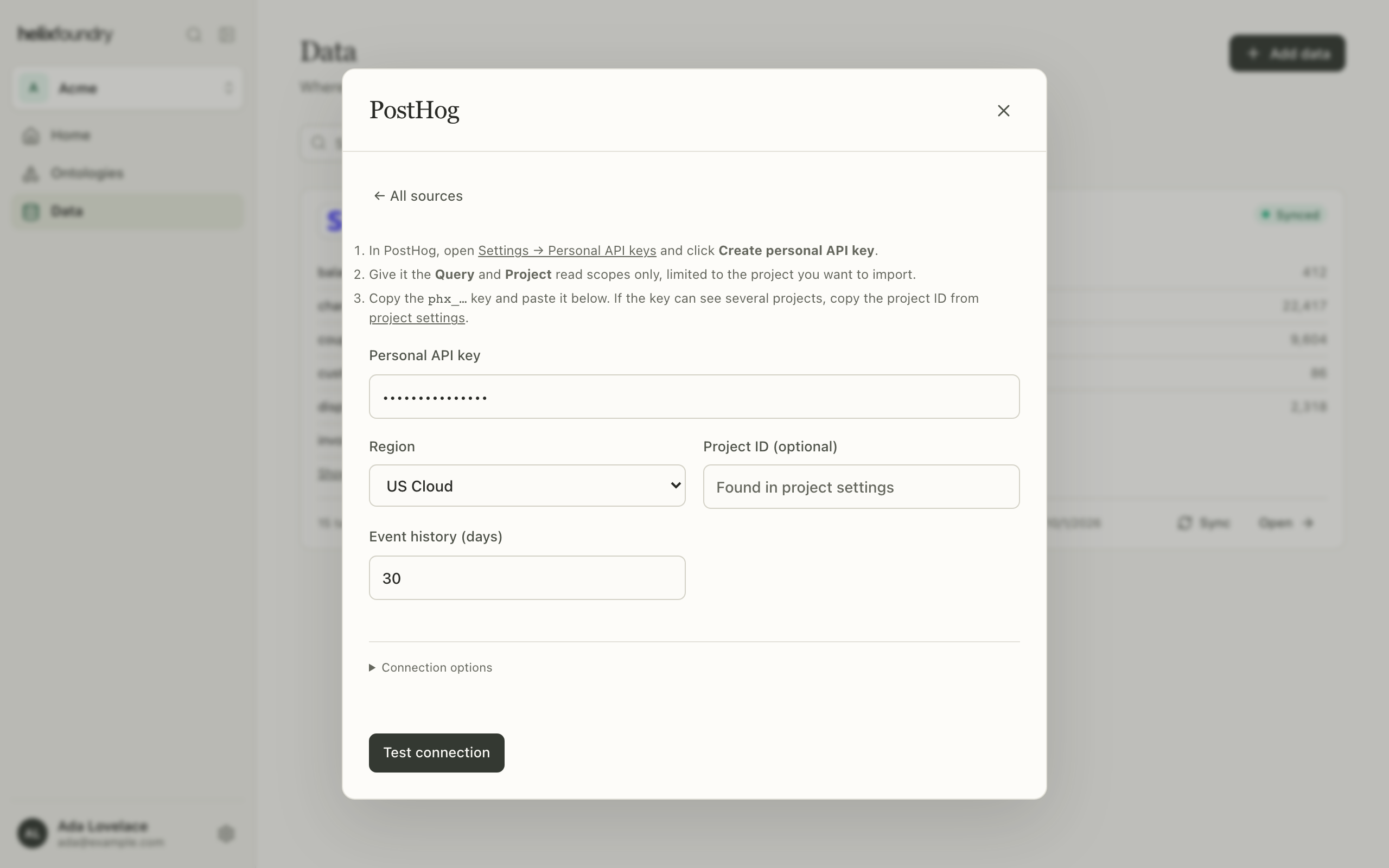
In PostHog, open **Settings** → **Personal API keys** and select **Create personal API
key**. Give it the **Query** and **Project** read scopes only, limited to the project you
want to import.
| Field | Notes |
| - | - |
| Region | US Cloud, EU Cloud or Self-hosted (an HTTPS host). |
| Project ID | Optional when the key sees one project; Foundry fills it in after the test. |
| Event history (days) | 1 to 365, 30 by default. |
Syncs `persons`, `person_distinct_ids` and `groups` in full, and `events` and
`daily_event_counts` for the event history you chose.
## PostHog
In PostHog, open **Settings** → **Personal API keys** and select **Create personal API
key**. Give it the **Query** and **Project** read scopes only, limited to the project you
want to import.
| Field | Notes |
| - | - |
| Region | US Cloud, EU Cloud or Self-hosted (an HTTPS host). |
| Project ID | Optional when the key sees one project; Foundry fills it in after the test. |
| Event history (days) | 1 to 365, 30 by default. |
Syncs `persons`, `person_distinct_ids` and `groups` in full, and `events` and
`daily_event_counts` for the event history you chose.
 ## PostgreSQL
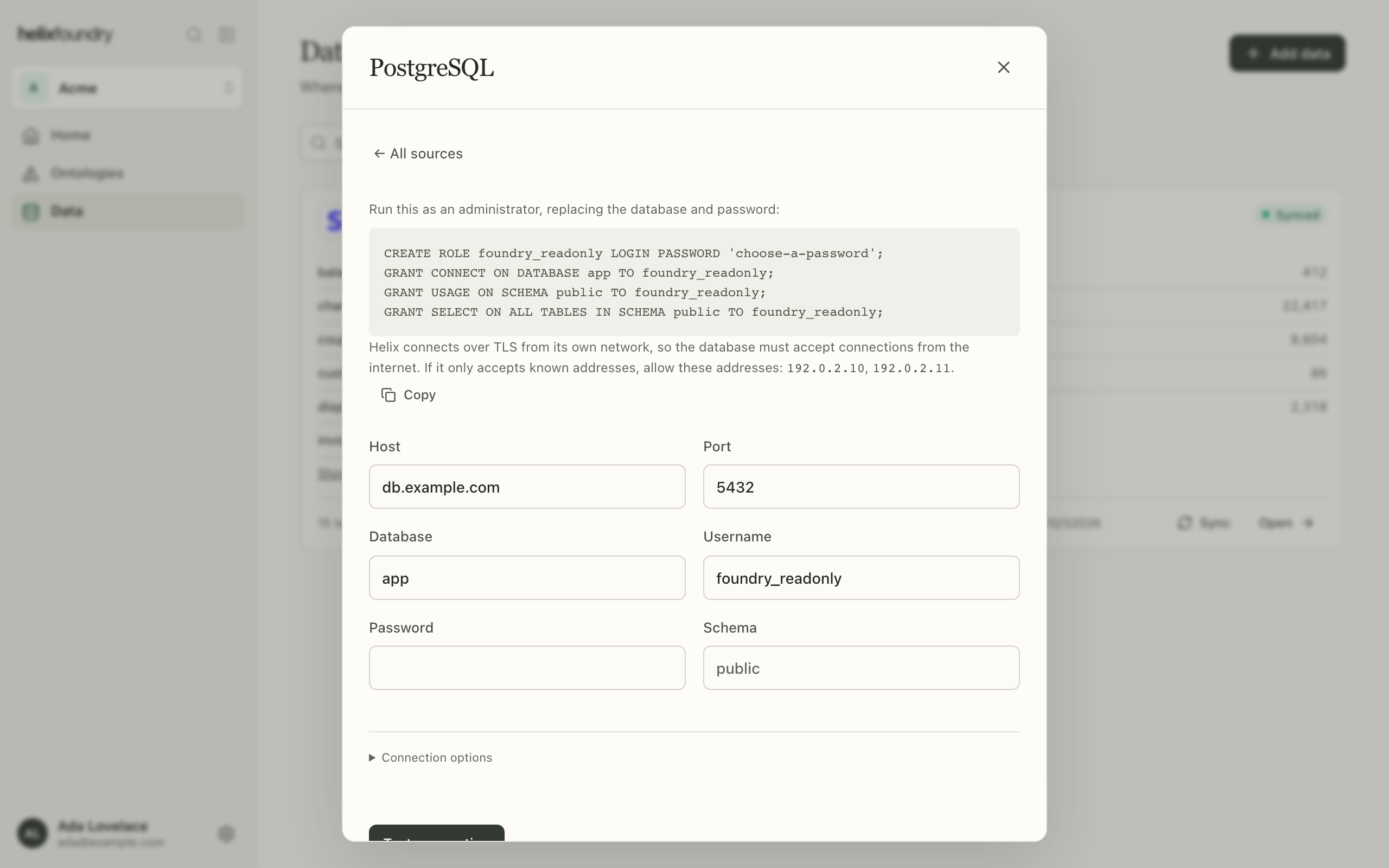
Create a read-only user as an administrator, replacing the database name and password:
```sql theme={"languages":{"custom":["languages/helixql.json"]}}
CREATE ROLE foundry_readonly LOGIN PASSWORD 'choose-a-password';
GRANT CONNECT ON DATABASE app TO foundry_readonly;
GRANT USAGE ON SCHEMA public TO foundry_readonly;
GRANT SELECT ON ALL TABLES IN SCHEMA public TO foundry_readonly;
```
| Field | Default |
| - | - |
| Host, Database, Username, Password | Required. |
| Port | `5432` |
| Schema | `public` |
| Encryption (under **Connection options**) | Require TLS with certificate verification. Add a CA certificate for a private CA, or choose **No TLS**. |
After the test, choose the tables to sync. Every table in the schema starts selected,
and keeping them all also syncs tables added later; views are not synced. If a selected
table is dropped or renamed, syncs fail until you edit the connection and test it
again.
## PostgreSQL
Create a read-only user as an administrator, replacing the database name and password:
```sql theme={"languages":{"custom":["languages/helixql.json"]}}
CREATE ROLE foundry_readonly LOGIN PASSWORD 'choose-a-password';
GRANT CONNECT ON DATABASE app TO foundry_readonly;
GRANT USAGE ON SCHEMA public TO foundry_readonly;
GRANT SELECT ON ALL TABLES IN SCHEMA public TO foundry_readonly;
```
| Field | Default |
| - | - |
| Host, Database, Username, Password | Required. |
| Port | `5432` |
| Schema | `public` |
| Encryption (under **Connection options**) | Require TLS with certificate verification. Add a CA certificate for a private CA, or choose **No TLS**. |
After the test, choose the tables to sync. Every table in the schema starts selected,
and keeping them all also syncs tables added later; views are not synced. If a selected
table is dropped or renamed, syncs fail until you edit the connection and test it
again.
 ## MySQL
The same fields as PostgreSQL, with port `3306` and no schema: Foundry reads the
database you name. Give the user `SELECT` on it only.
## Network access for databases
Foundry connects to a database over the internet from Helix's network, so the
database must accept connections from outside your network. If it only accepts known
addresses, allow the outbound addresses the form lists, and select **Copy** to copy
them.
Foundry refuses private, loopback and shared address ranges, and follows no
redirects.
## Limits
| Limit | Value |
| - | - |
| Rows per table, per sync | 2,000,000. A larger table fails the sync: for a database, leave it out; for PostHog, shorten the event history. |
| One sync attempt | 2 hours |
| Attempts per sync | 3 |
| Syncs running per connection | 1 |
## Next steps
Add a connection and follow its syncs.
Upgrade to Pro for PostgreSQL and MySQL.
This documentation is built and hosted on [Mintlify](https://mintlify.com), a developer documentation platform.
## MySQL
The same fields as PostgreSQL, with port `3306` and no schema: Foundry reads the
database you name. Give the user `SELECT` on it only.
## Network access for databases
Foundry connects to a database over the internet from Helix's network, so the
database must accept connections from outside your network. If it only accepts known
addresses, allow the outbound addresses the form lists, and select **Copy** to copy
them.
Foundry refuses private, loopback and shared address ranges, and follows no
redirects.
## Limits
| Limit | Value |
| - | - |
| Rows per table, per sync | 2,000,000. A larger table fails the sync: for a database, leave it out; for PostHog, shorten the event history. |
| One sync attempt | 2 hours |
| Attempts per sync | 3 |
| Syncs running per connection | 1 |
## Next steps
Add a connection and follow its syncs.
Upgrade to Pro for PostgreSQL and MySQL.
This documentation is built and hosted on [Mintlify](https://mintlify.com), a developer documentation platform.